EmberRTOS Desktop
EmberRTOS Desktop is the edition of EmberRTOS for nodes where a person works at the machine: an operator station, a line-side display, an inspection bench. It has the same immutable foundation, the same transactional updates, and the same EmberNet endpoint as EmberRTOS Headless, with a full desktop on top. The desktop is KDE Plasma, dressed in EmberNet's look: Fireball Industries wallpapers, EmberRTOS themes in dark and light, a slim top bar, and a dock.
Everything on this page was captured from an EmberRTOS Desktop install medium, installed to an empty disk in a UEFI virtual machine at 1920 by 1080: the boot menu, boot splash, sign-in splash and Global Theme screens from the 0.1.5 medium (they have not changed since), and the home screen, setup app, launcher, About and Files screens from the 0.1.9 medium. Nothing is mocked up. The Desktop runs on x86_64. There is no Desktop image for the Raspberry Pi in this release.
Install
Install EmberRTOS Desktop the same way as the other x86_64 editions. Boot the machine from the install medium in UEFI mode, choose Install within the three second countdown, and the unattended install writes to the first disk and restarts. The steps are in First boot and the setup app. Remove the medium when the box restarts.
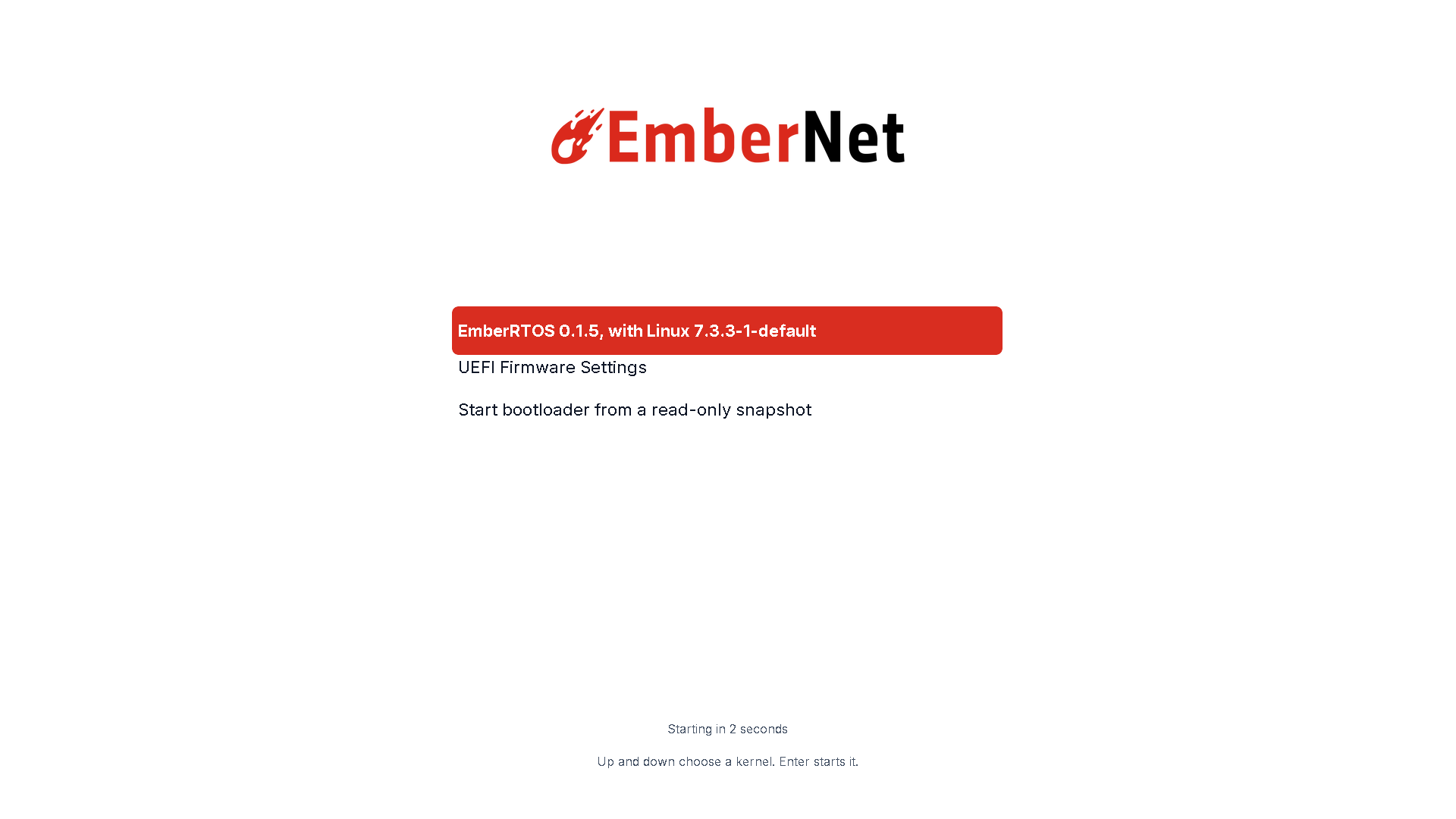
The boot menu is EmberNet's, not a text menu. It lists the system and its kernel, with a countdown that starts the default entry, and the highlight holds the whole kernel name:
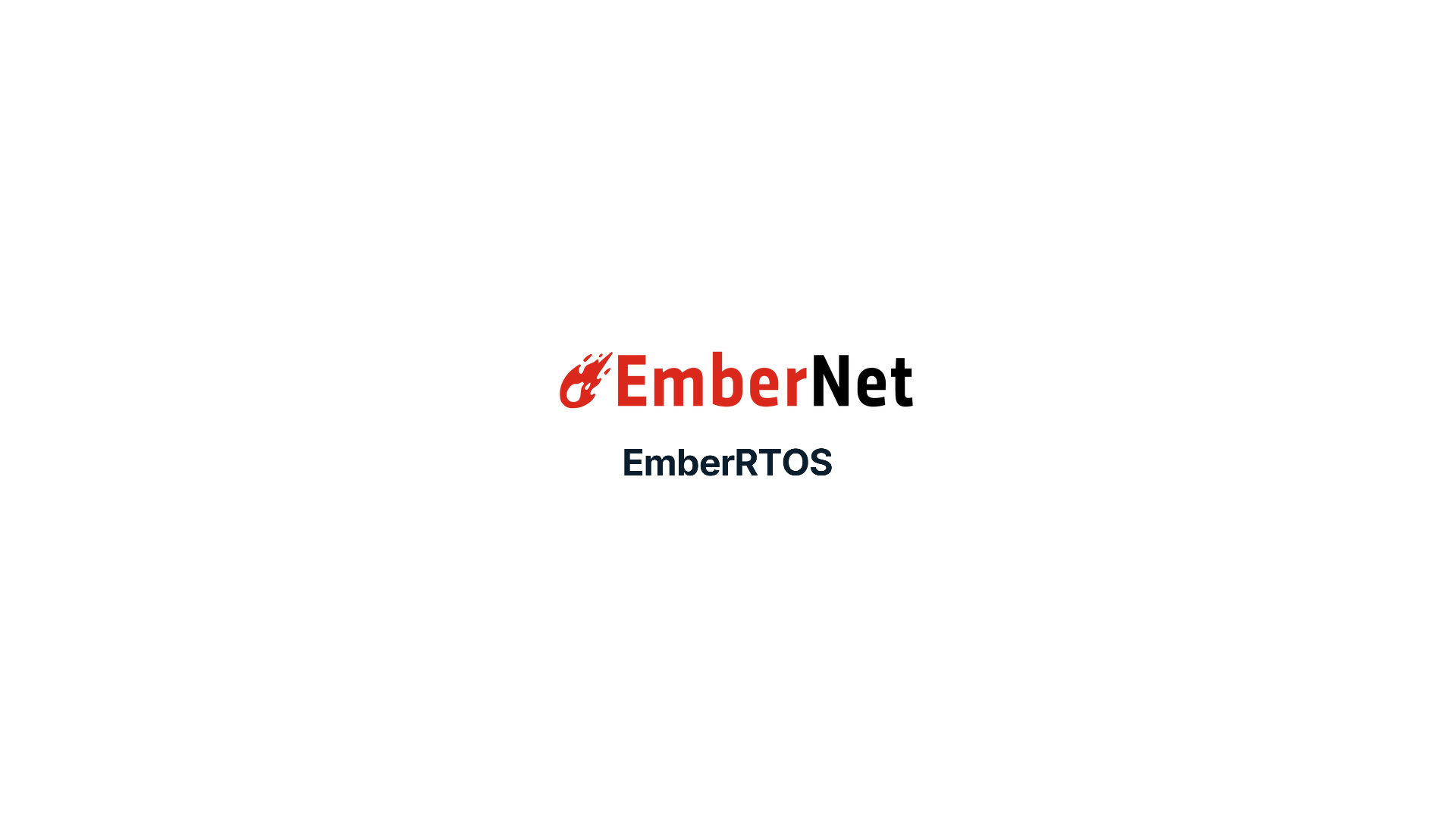
The boot splash follows, in place of scrolling boot messages:
The Desktop edition runs the general-purpose kernel and has no real-time kernel, so the setup app has no Real-time screen. A node with a hard deadline runs EmberRTOS Headless RT.
The sign-in splash
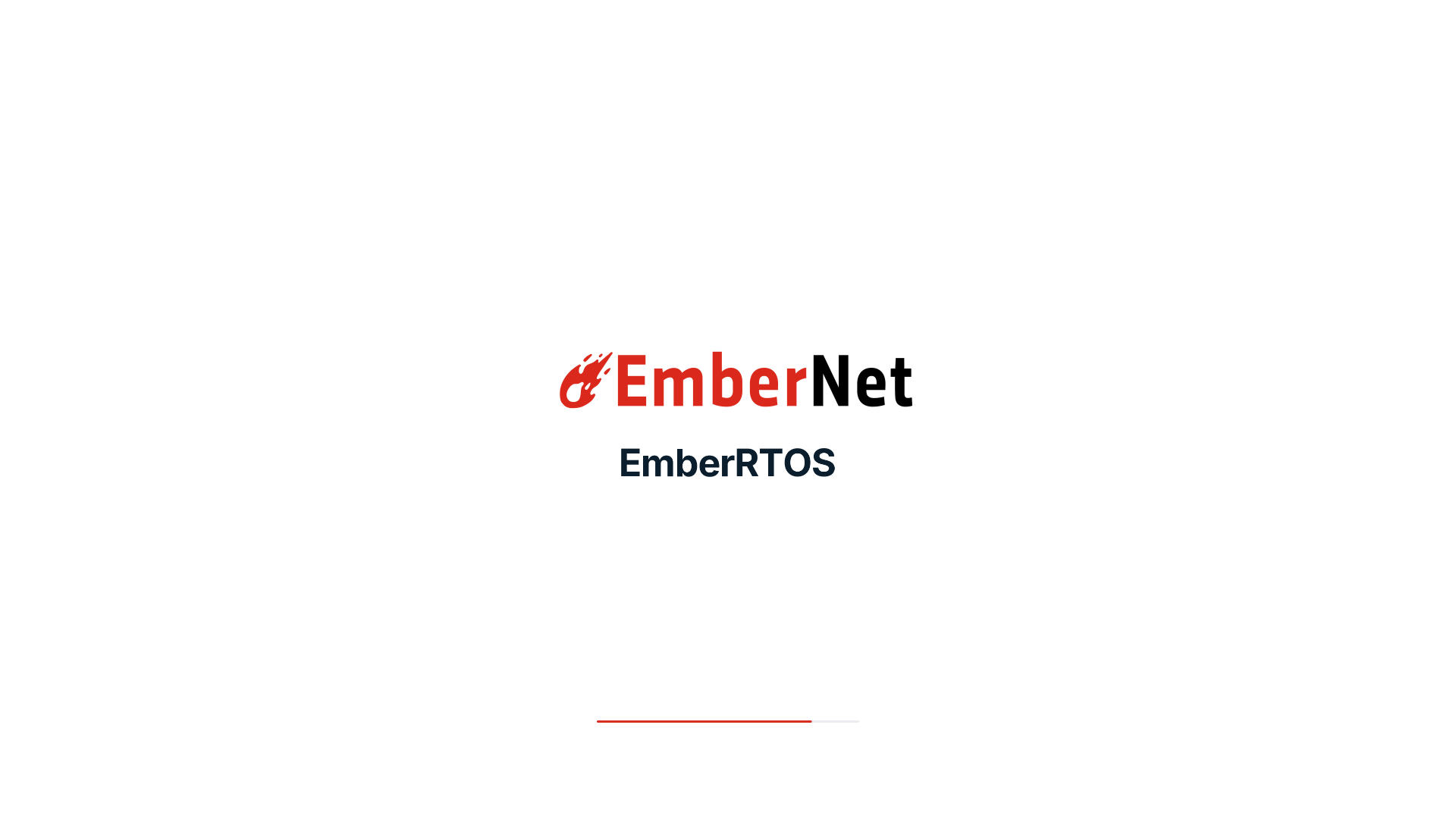
There is no login screen. The desktop signs in on its own, because a box in a cabinet cannot answer a login prompt. While the session starts, the splash is the same as the boot splash: white, the EmberNet logo, the word EmberRTOS, and an ember bar that fills as the desktop loads.
The desktop account has no password and no sudo. The desktop never locks and never sleeps on its own. Work that needs root goes through the setup app and the maintenance login.
The desktop
After the splash, the box goes straight to the desktop. The wallpaper is Fireball Industries artwork, the top bar carries the EmberNet launcher on the left and the status icons and clock on the right, and the dock sits at the bottom with the setup app, system settings, files, a web browser, and a terminal. The Home folder and the bin are on the desktop, drawn as red folders like the rest.
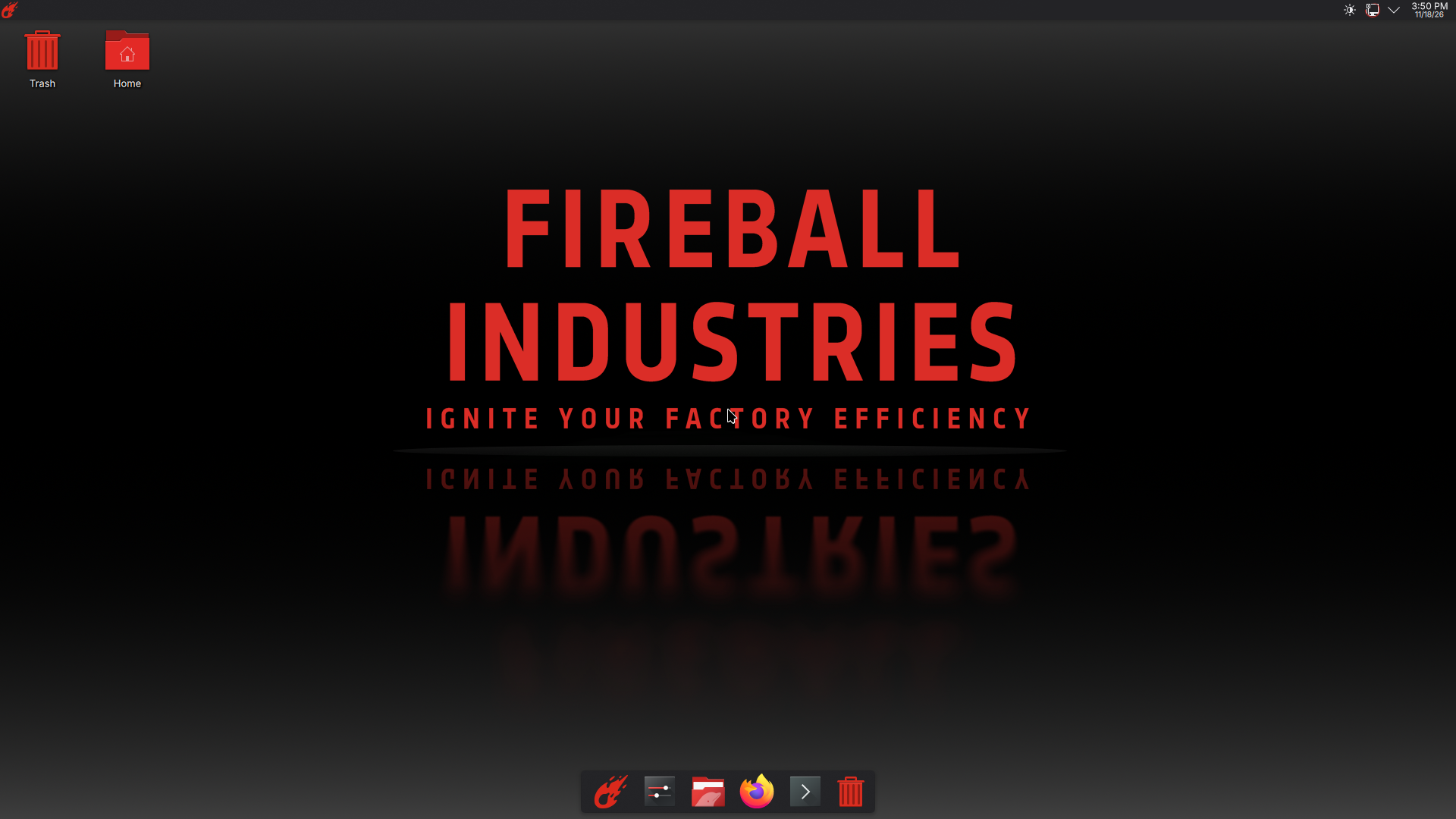
The icons in the dock, from the left:
| Icon | Opens |
|---|---|
| EmberNet flame | EmberRTOS Setup, the setup app |
| Sliders | System Settings |
| Folder | Files |
| Firefox | The web browser |
| Chevron | Terminal |
| Bin | Trash |
The dock steps aside for a window that reaches it, so it is not in front of a window you are working in.
The setup app is one click away
The setup app is the first icon in the dock, so a person at the machine never has to look for it. At sign-in, until the box is enrolled or part of a cluster, the setup app opens by itself, in a window, on the Network screen:
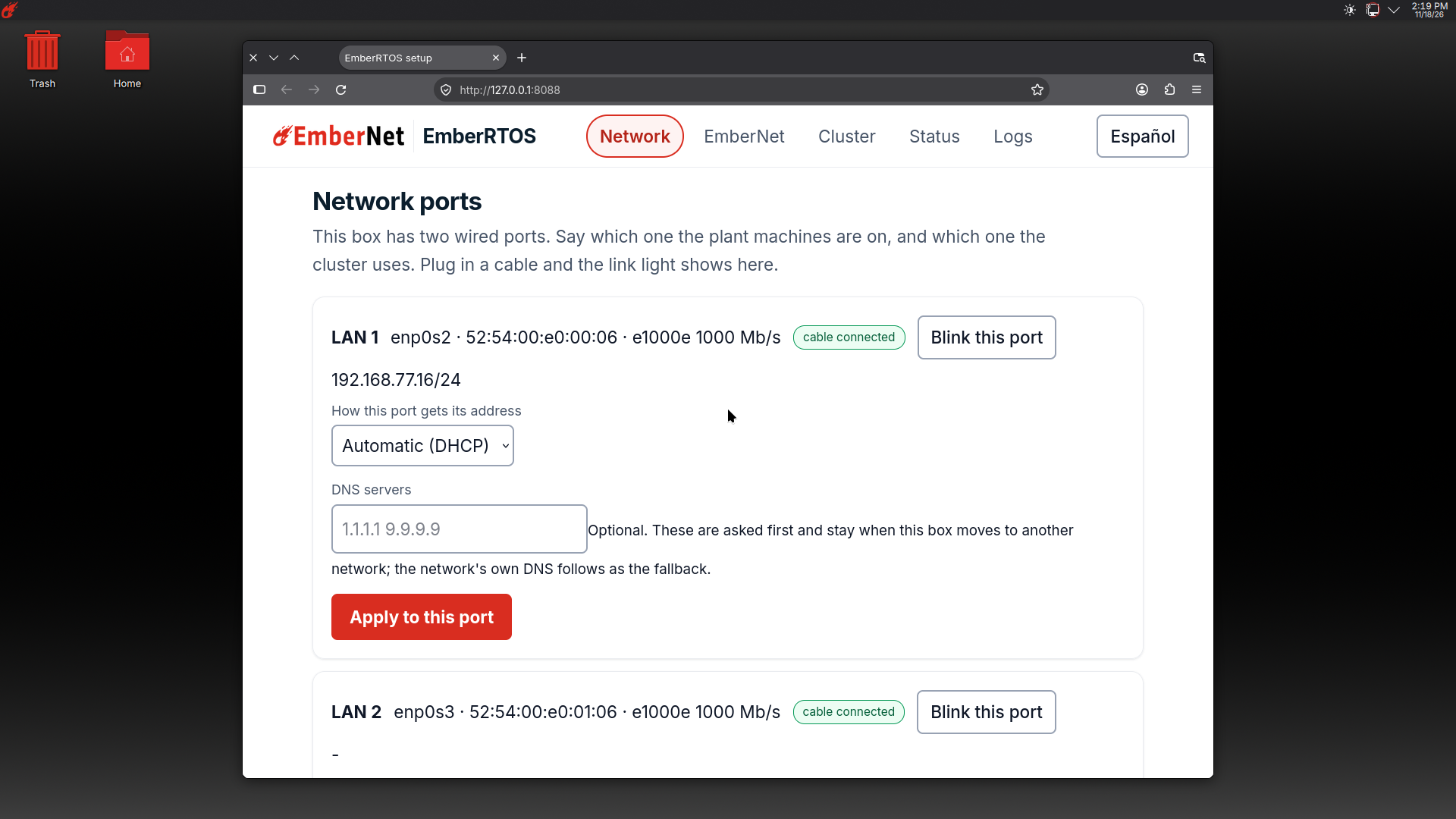
Close it whenever you like and open it again from the dock. It is the same app described in First boot and the setup app: network ports, EmberNet enrollment, the cluster, status, and logs, in English and Spanish. The app still answers only on the machine's own loopback address, so nothing on the network can change the box through it.
The launcher
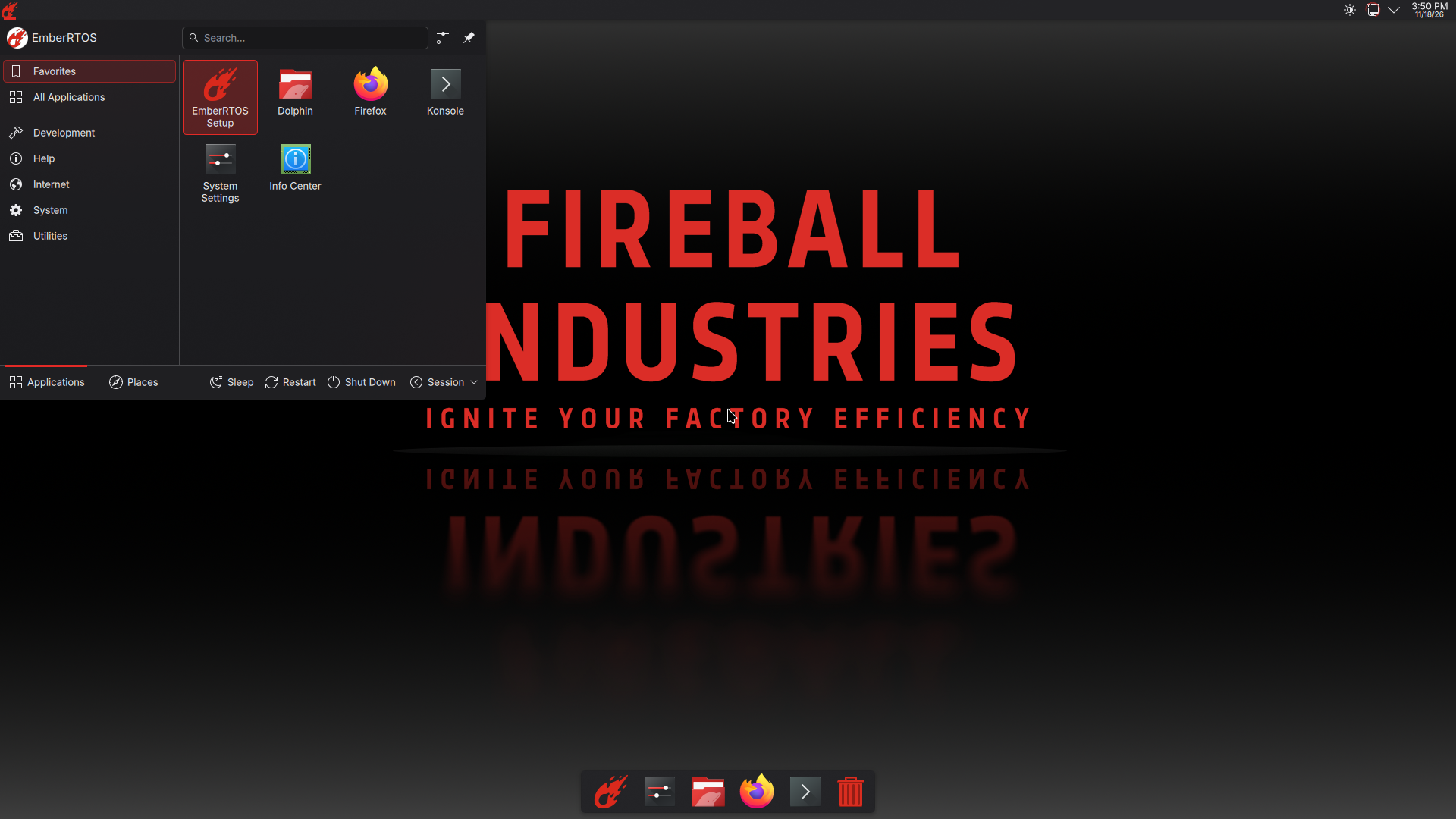
The launcher in the top-left corner is the EmberNet flame. It opens the application list. The EmberRTOS name sits at the top, and Favorites open first: EmberRTOS Setup leads, followed by Files, the web browser, the terminal, System Settings, and Info Center. The categories and search are underneath. Type a few letters of setup into the search to find the setup app from here as well.
Appearance
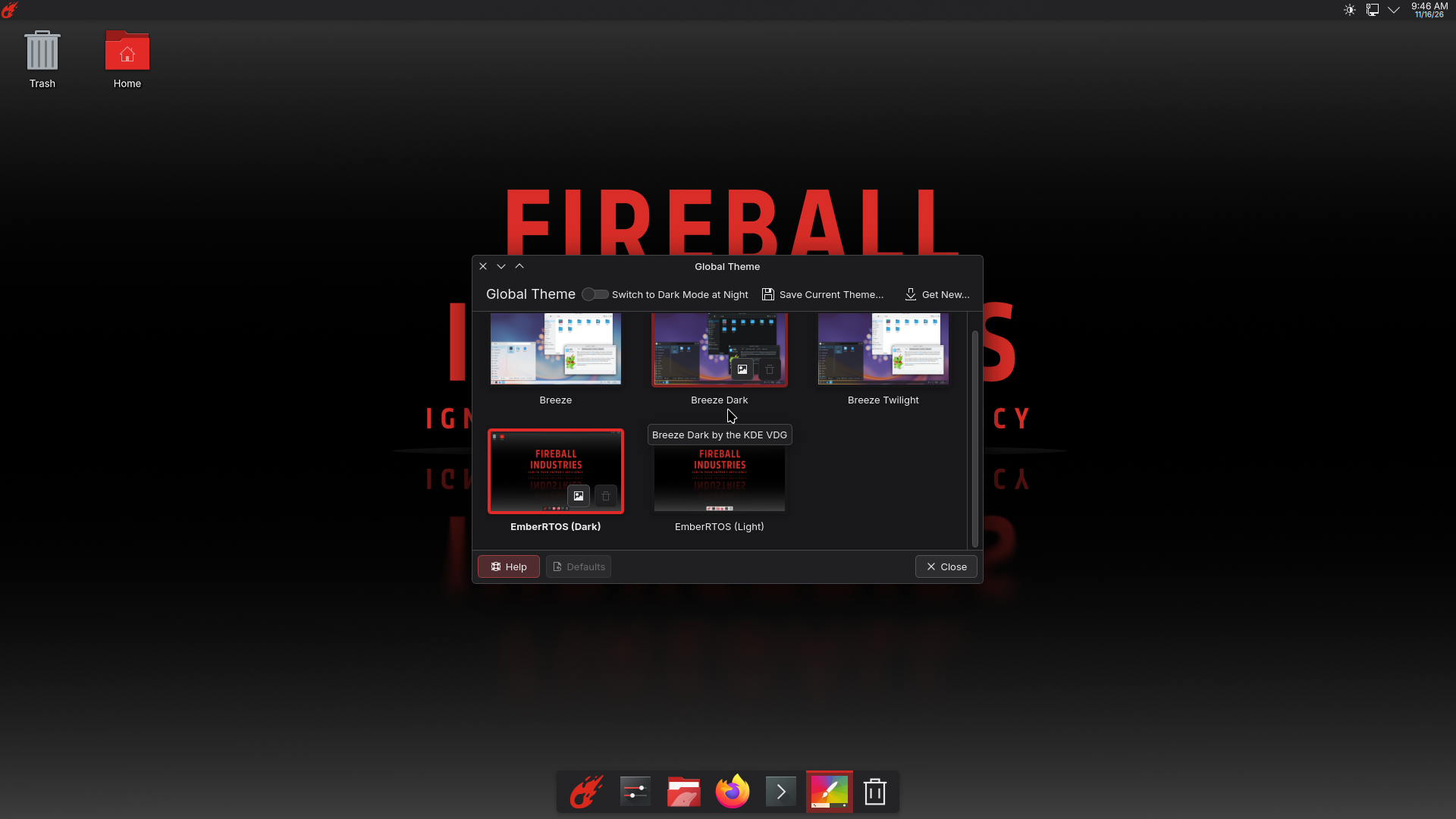
The desktop ships two themes, EmberRTOS (Dark) and EmberRTOS (Light), and starts on the dark one. Open System Settings and then Global Theme to see both, with previews, and to switch between them. The wallpaper list holds only our own wallpapers.
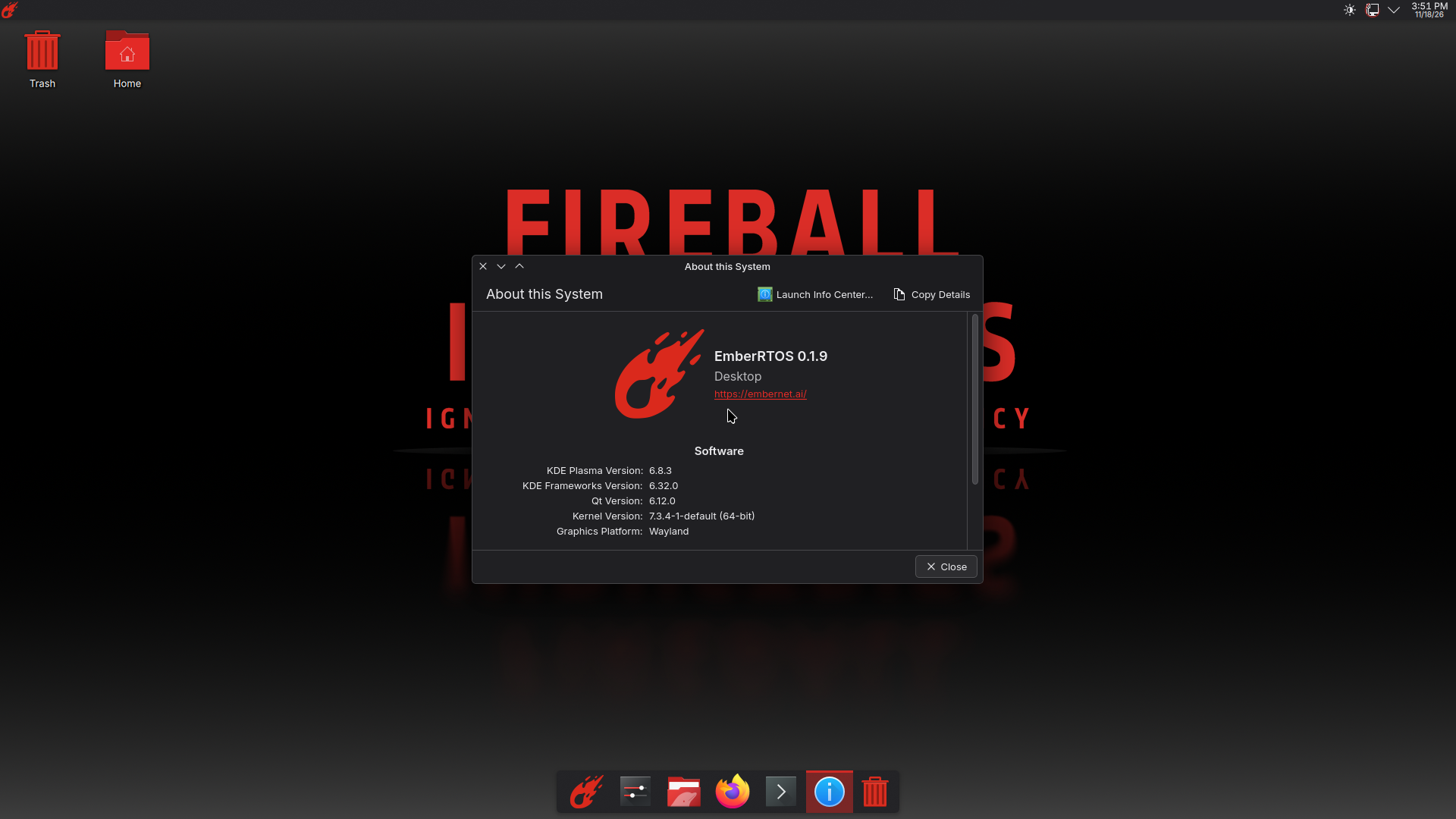
About this System shows the EmberNet flame, the release, and the edition:
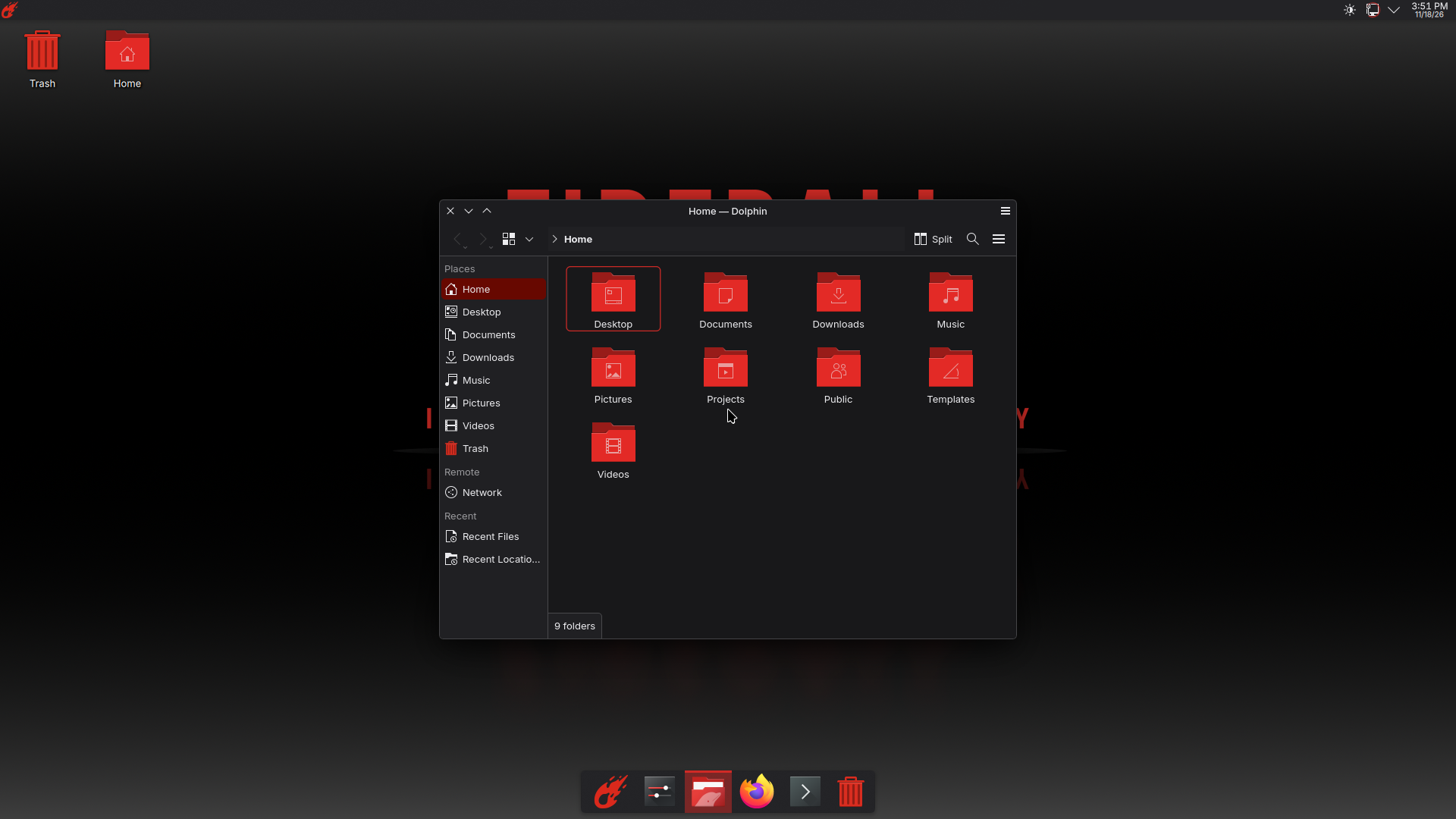
Files open in the home folder with the red EmberNet folders:
What is the same as the other editions
Underneath, the Desktop edition is the same operating system, so what you learned on the Headless editions carries over:
- The root filesystem is read-only, and changes go through
transactional-updateinto a new snapshot. See EmberRTOS Headless. - The EmberNet endpoint and the Plasma firewall are set up as containers, as on the Headless editions. See EmberRTOS Headless for how they update.
- Docker is not installed and cannot be added.
- The box is enrolled and joined to a cluster from the setup app, the same way.
What is not proven
The Desktop was run in a virtual machine with a software-drawn display. It has not run on a real graphics chip, so hardware acceleration under the general-purpose kernel is expected to work on the supported chips and is unchecked. The light theme was not checked screen by screen.
Next steps
- First boot and the setup app: enroll the box and start or join a cluster
- EmberRTOS Headless: updates, rollback, and what is included
- EmberRTOS Headless RT: the real-time kernel