Fleet
Fleet is where you see the machines you run and what is on them. It has tabs for Nodes, Running apps, App Store, GitOps, and Provisioning. Which tabs you see depends on your role, and everything you see is scoped to the tenant shown in the Scope picker at the top left.
Nodes
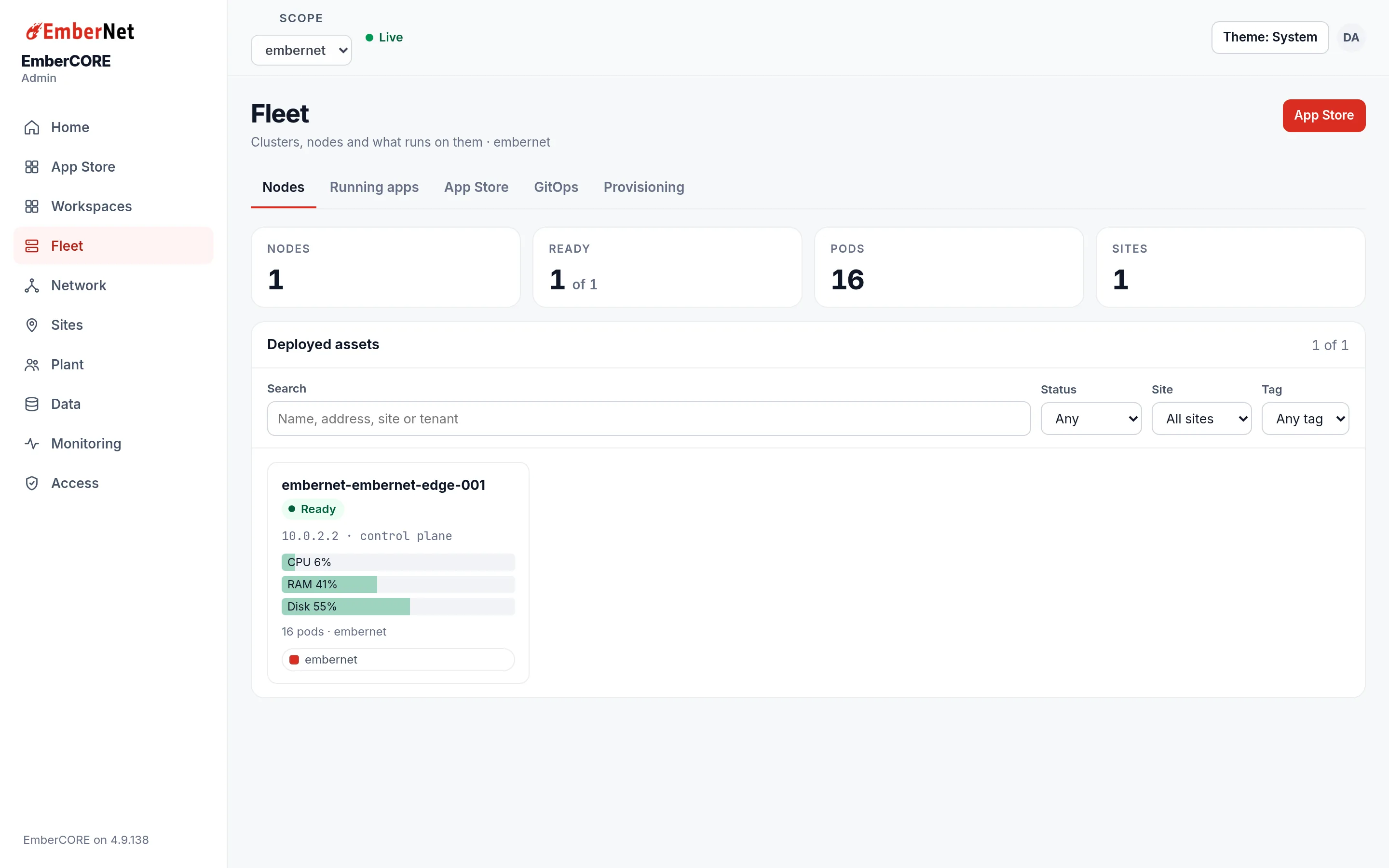
The Nodes tab opens on four counters: Nodes, Ready, Pods, and Sites. Below them, Deployed assets is a grid with one card per node. A card shows the node's name and status, its address and role, bars for CPU, memory, and disk, how many pods it runs, and how long it has been up.
Use the search box to find a node by name, address, site, or tenant, and the Status, Site, and Tag filters to narrow the grid. Click a node to open its detail view:
- Overview shows status, address, kind, age, CPU, memory, disk, pod count, and site, followed by every app running on that node, each with View and Open buttons.
- Task Manager shows live resource use for the node.
- Location note is free text for where the machine physically sits, and Tags are labels you can add to drive the Tag filter on the grid.
If a node is not Ready, check it here first, then look at Alerts for the history of what happened.
Running apps
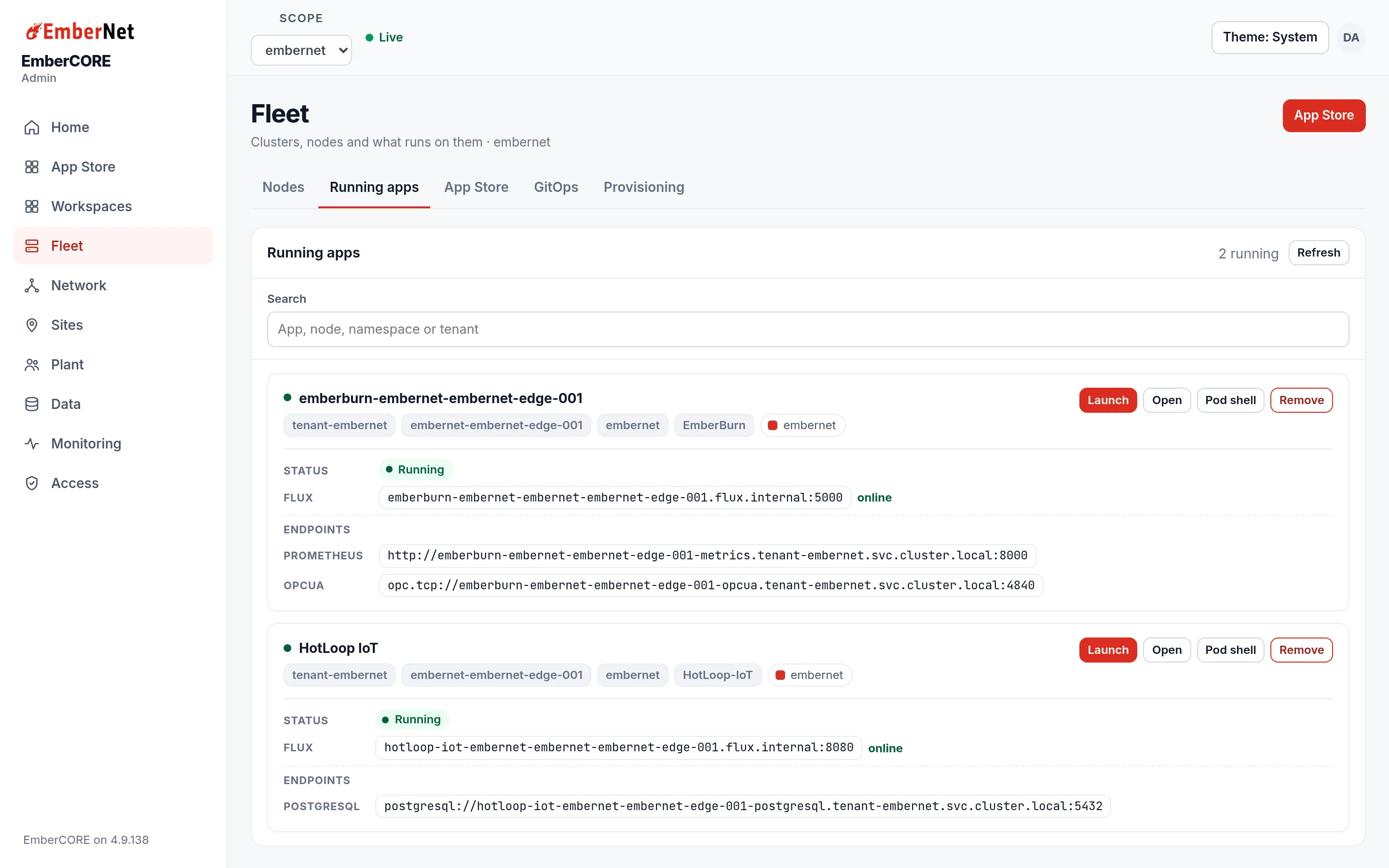
Running apps lists every app deployed to your nodes, with a count at the top and a search box that matches app, node, namespace, or tenant. Each entry shows its status, the node it runs on, its overlay and cluster addresses, and its endpoints. From an entry you can:
- Launch the app's own screen inside the console.
- Open it in its own browser tab.
- View http or Open http for apps that expose an extra port.
- Remove it, which uninstalls the app from the node.
When nothing from the App Store is running in your tenant, the list is empty and says so. To install something, use the App Store.
App Store
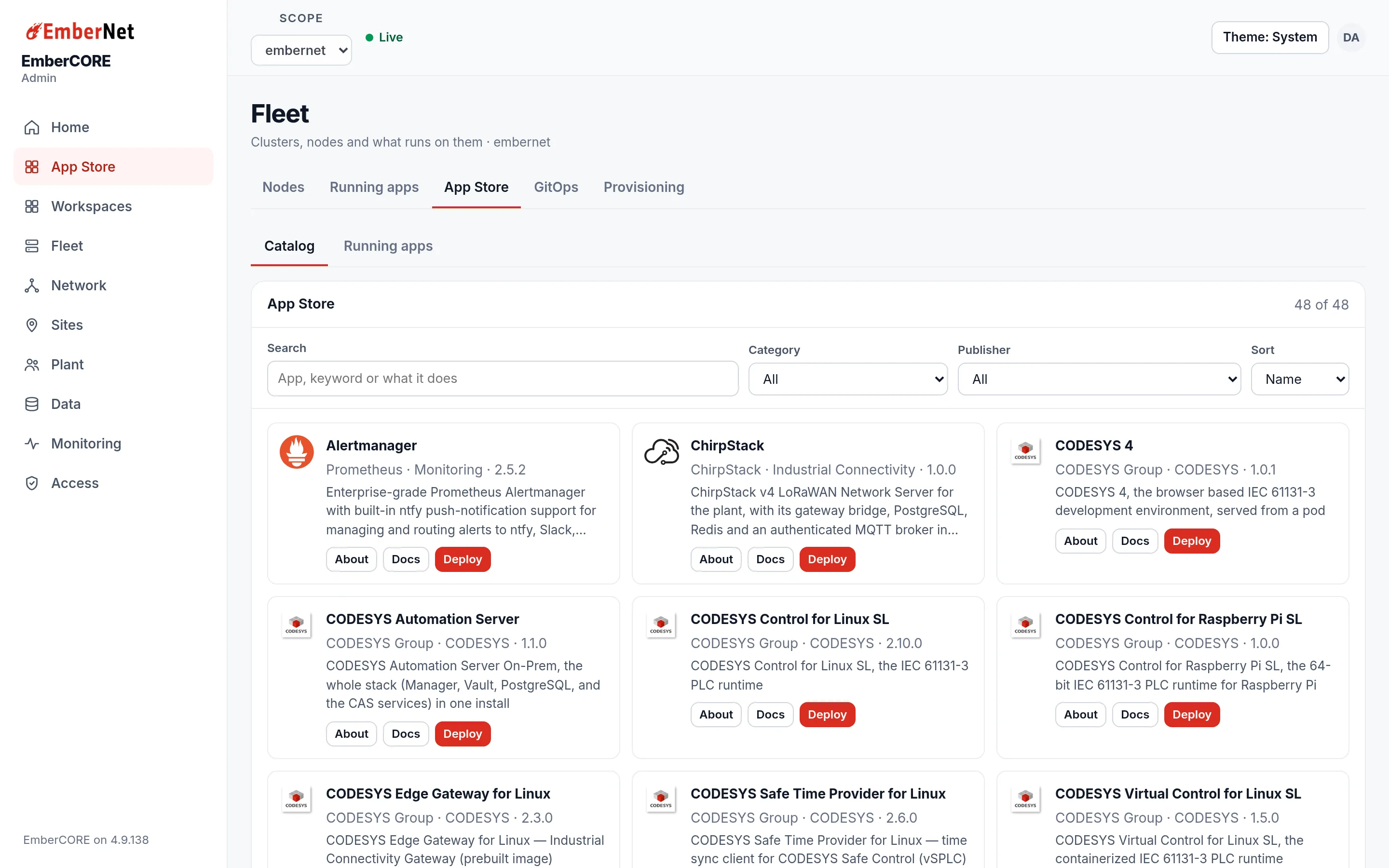
The App Store tab is the catalog of curated industrial apps, with Catalog and Running apps views. Search by keyword, then narrow by Category and Publisher and change the Sort order. Every card has three buttons:
- About opens the app's details: publisher, category, version, how many instances it runs, and its keywords.
- Docs opens the app's page in these docs. Each app is described under App Store.
- Deploy installs the app onto a node you pick.
Deploy and Remove
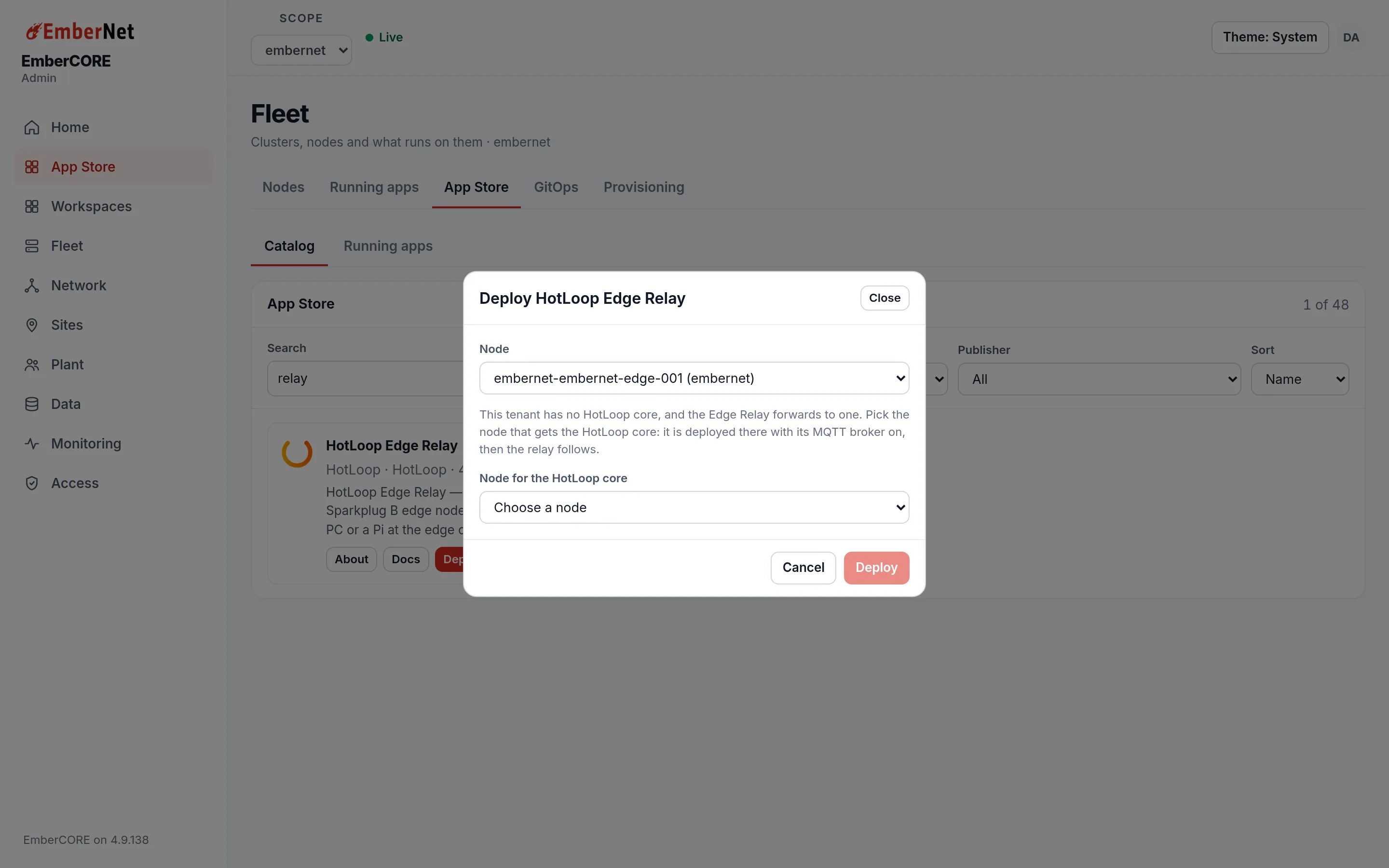
Deploy asks which node the app goes on, and most apps ask for nothing more. A few ask for what they need to start:
- HotLoop Edge Relay finds or makes the HotLoop core's MQTT broker itself. A tenant that already has a core with its broker on is used as it is. A core with the broker off gets it turned on, with a generated login and no anonymous access. A tenant with no core is asked which node gets one.
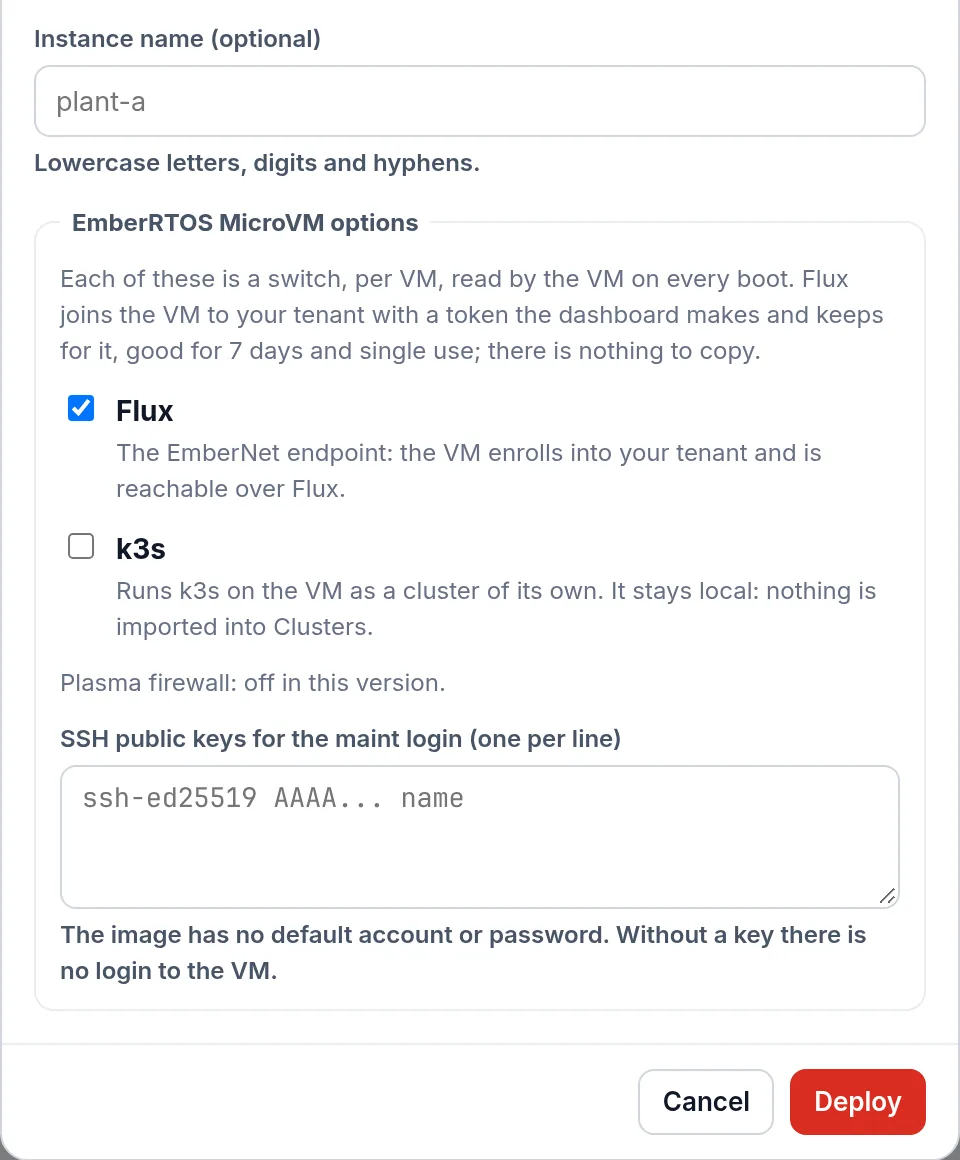
- EmberRTOS MicroVM has an instance name, a Flux switch that is on by default so the VM enrolls into your tenant, a switch that runs a small cluster on the VM of its own, and a box for SSH public keys. The image has no default account or password, so without a key there is no login to the VM.
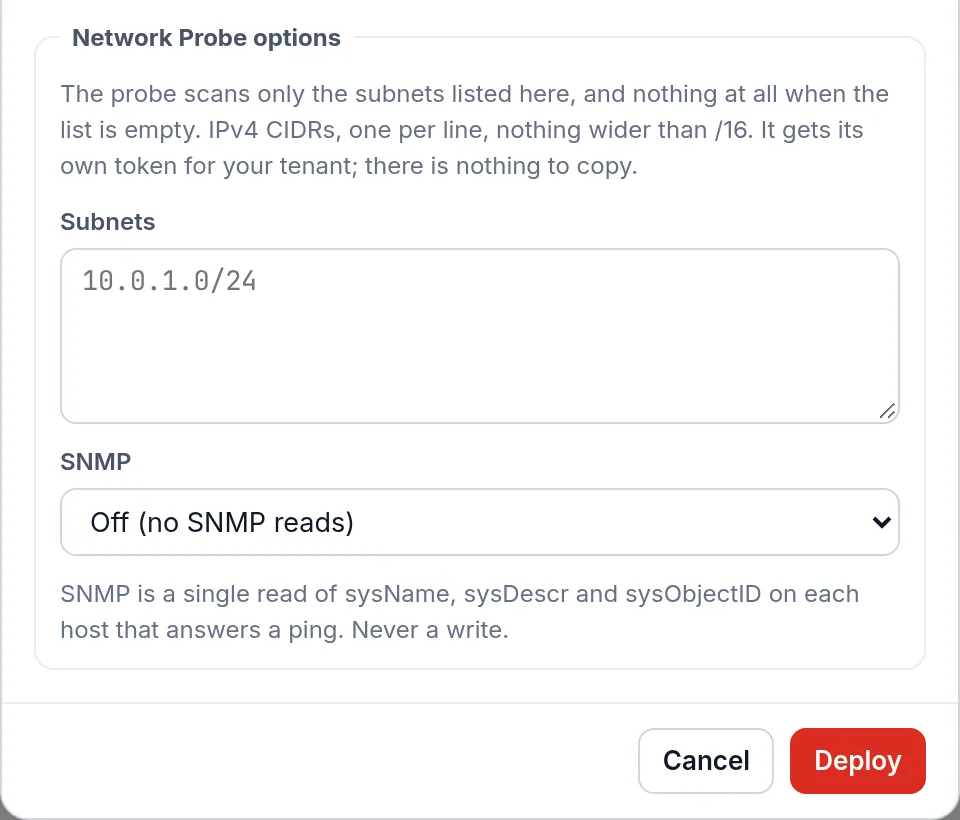
- EmberNET Network Probe has the subnets it may scan, one IPv4 range per line and nothing wider than a /16, and an SNMP choice that starts at off, with v2c or v3 and their levels and protocols when you turn it on.
These options appear when the app is installed on the dashboard's own cluster. On a tenant's own cluster the MicroVM and the Network Probe install with their defaults.
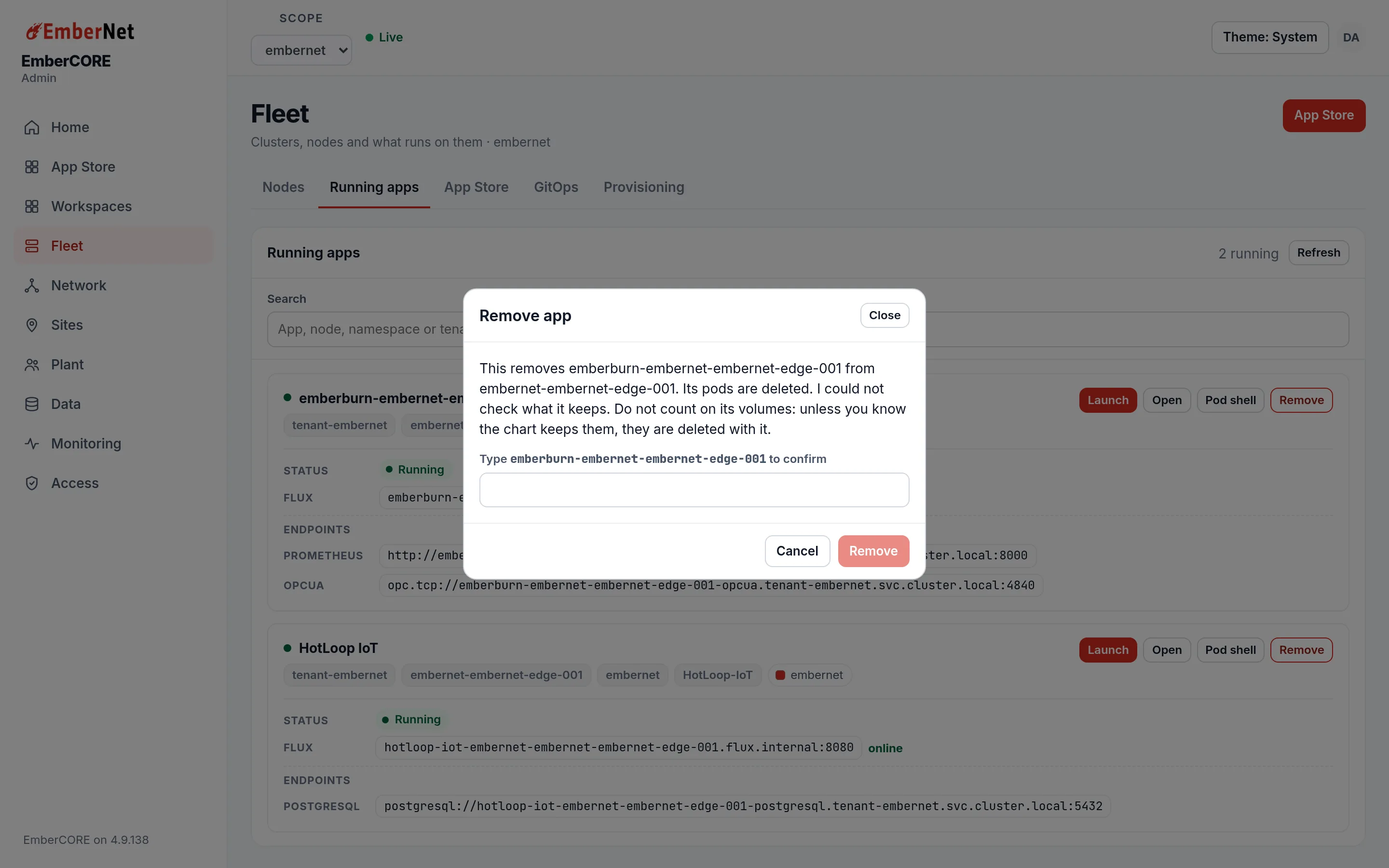
Remove asks you to type the app's release name before it does anything, and it says what happens to the app's data: what is deleted with the app and what stays. When it cannot check what the app keeps, the confirmation says so and tells you not to count on the app's data, instead of promising anything.
GitOps
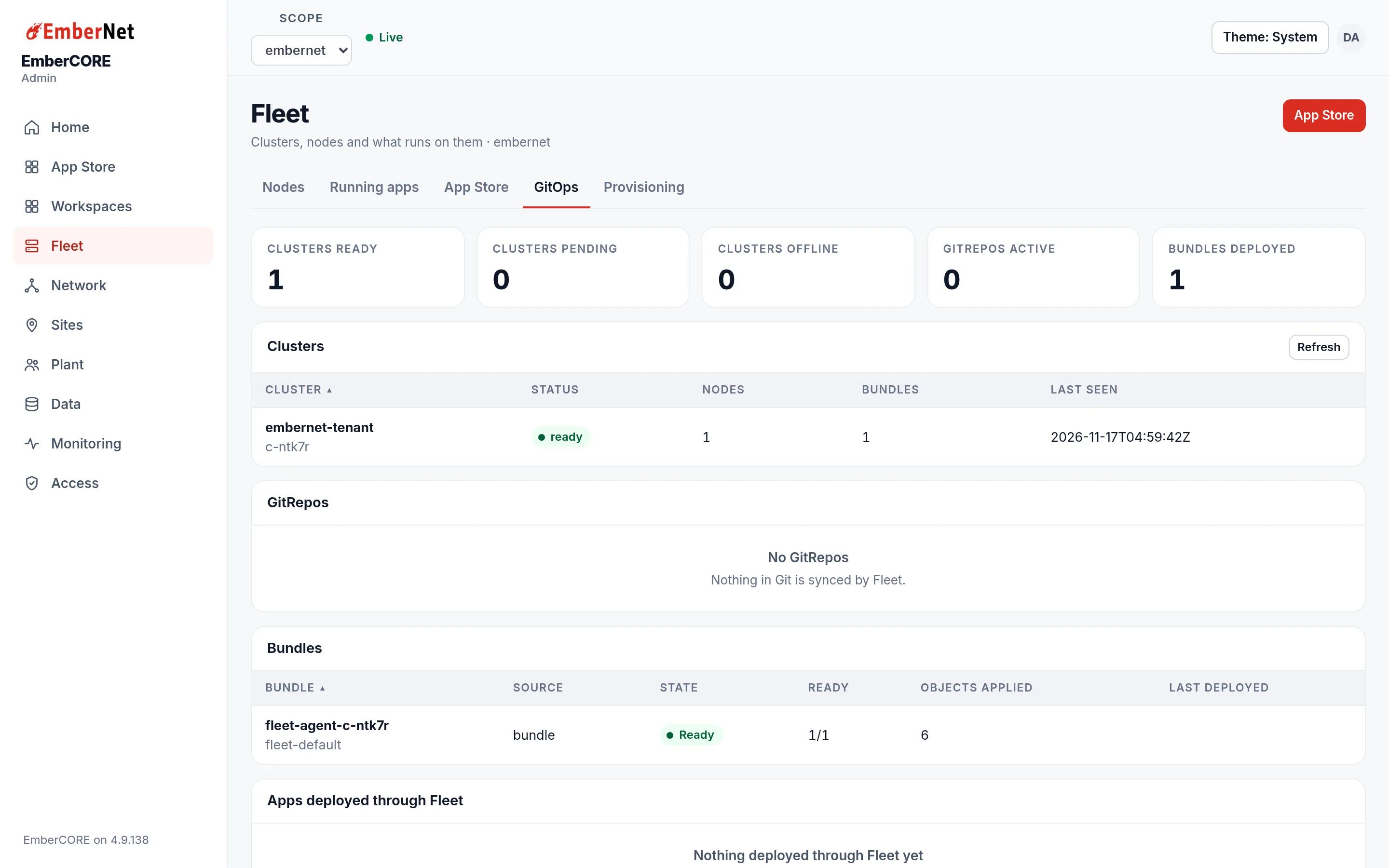
GitOps shows deployments that Fleet manages for you. The counters read Clusters ready, Clusters pending, Clusters offline, GitRepos active, and Bundles deployed. Below them are the Clusters Fleet manages, with their status, node count, bundle count, and when they were last seen, then the GitRepos it syncs from, the Bundles it has applied, and the Apps deployed through Fleet. A ready cluster with its bundle in the Ready state means the deployment landed. The tab ends with a form to deploy an app through Fleet, which needs the deploy permission. When nothing is deployed that way, each list says so and stays empty.
Provisioning
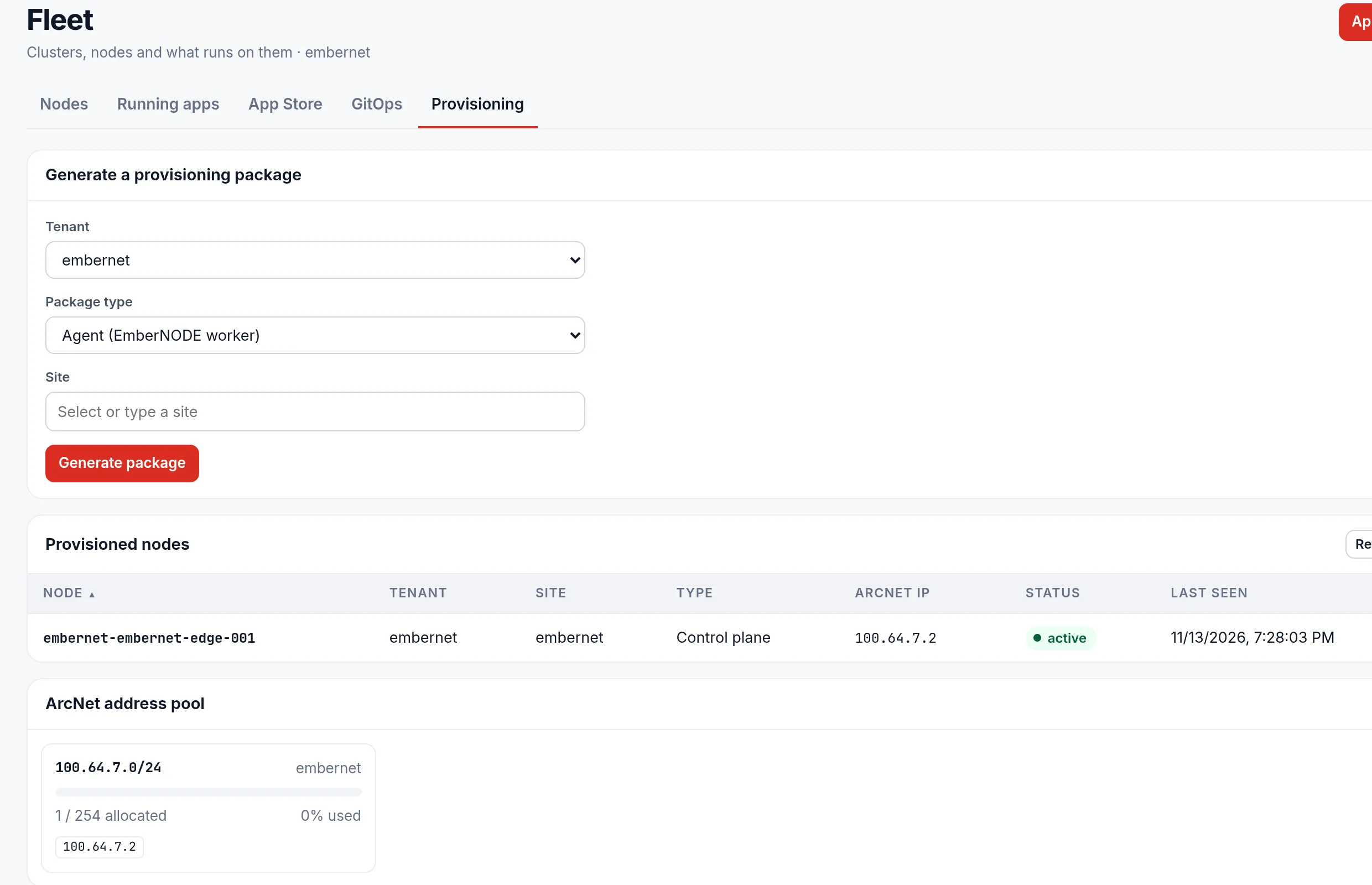
Provisioning is how a new machine joins your fleet. Under Generate a provisioning package, choose the tenant, the package type (for example an EmberNODE worker), and the site, then select Generate package and copy the install command it produces. The tab also lists Provisioned nodes, the ArcNet address pool allocated to them, and Enrollment codes. An enrollment code is a one-time code a machine presents to enroll itself into the tenant; the code is shown once, when you make it.