Mesh
The Network area of EmberCORE groups everything about how your sites connect. Its Mesh tab is the quickest check on whether the services your tenant publishes over Flux are reachable.
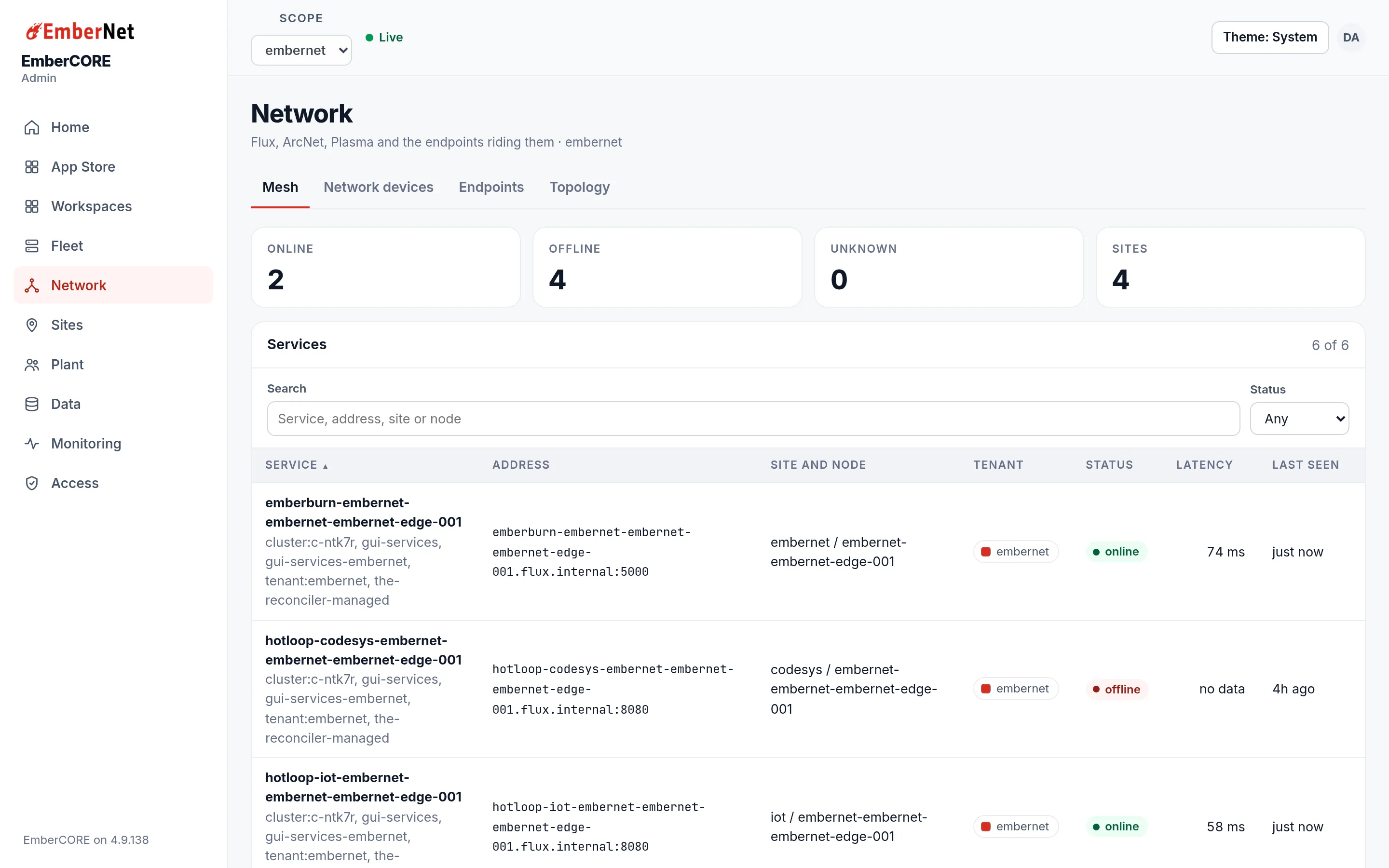
The counters read Online, Offline, Unknown, and Sites. Below them, Services is a table of every service in your scope with its address, the site and node it is hosted on, its tenant, its status, its latency, and when it was last seen. Search by service name, address, site, or node, and filter by status.
A service that moves from Online to Offline is the first thing to check when an app stops answering. Look at the node that hosts it in Fleet, then at the Flux page for how the mesh is built. Tenant users see this tab read-only.
Endpoints
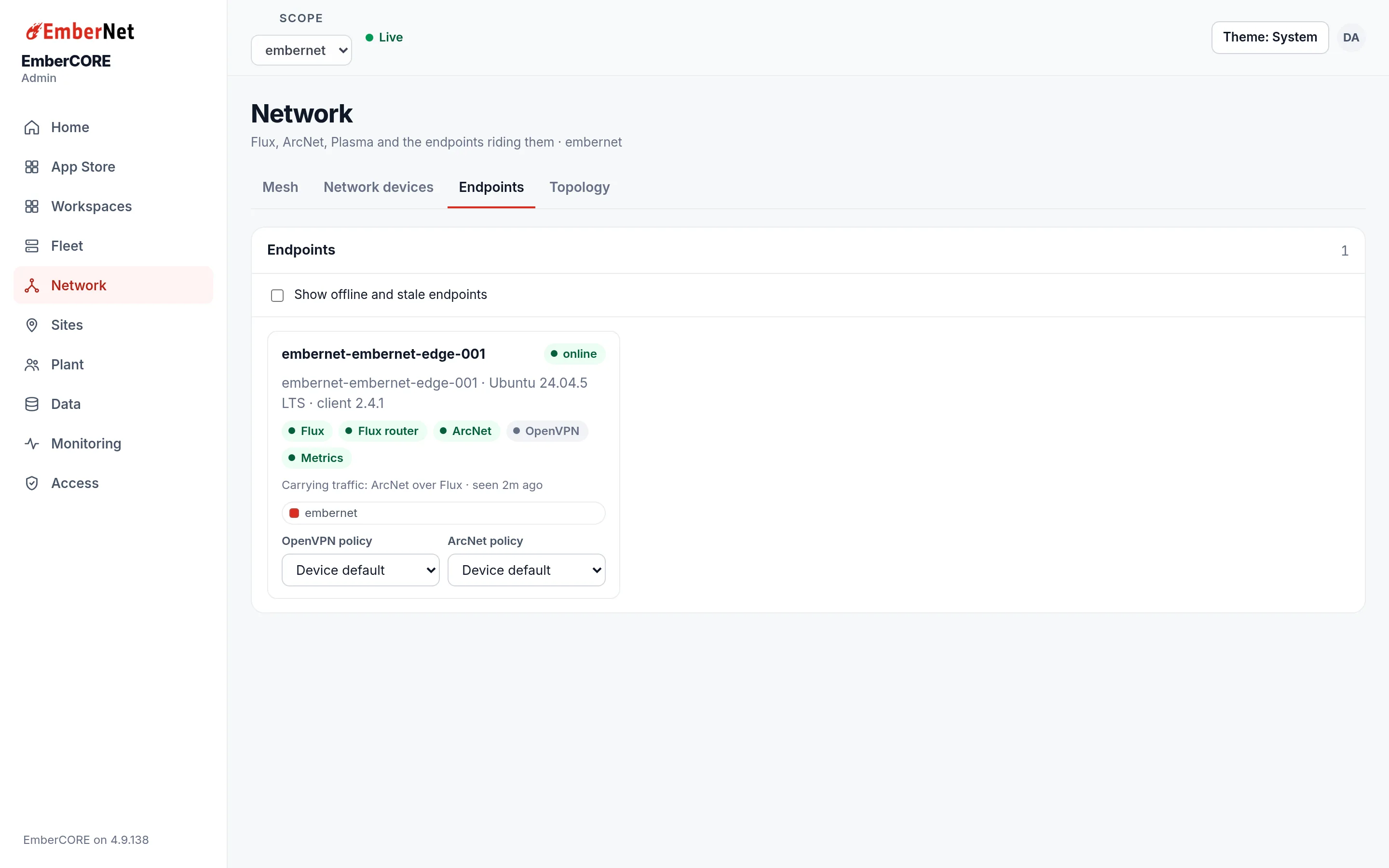
Endpoints lists the machines enrolled on your Flux network. Each card shows the machine's name and status, its operating system and client version, the transports it has available (Flux, a Flux router, ArcNet, OpenVPN, and metrics), and the path currently carrying its traffic. Two selectors on each card set the OpenVPN and ArcNet policy for that machine, and the default is the device's own setting. Turn on Show offline and stale endpoints to include machines that have not checked in recently.
Topology
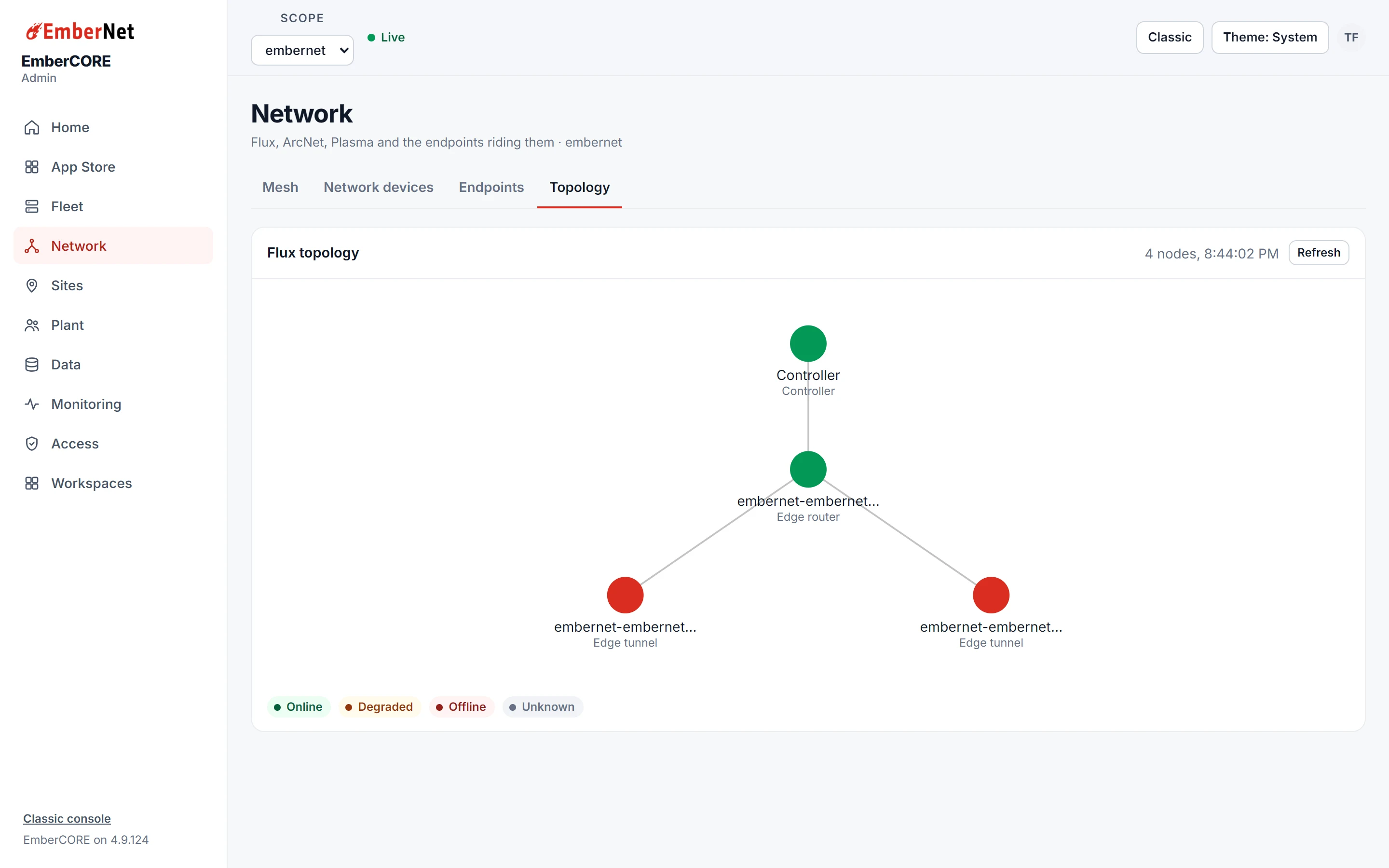
Topology draws the Flux network as a graph. The controller sits at the top, the edge routers connect to it, and each tunnel hangs off its router. Each node is colored by its state, online, degraded, offline, or unknown, and the legend under the graph names the colors. Refresh redraws it with the latest state. Use it to see at a glance which router a broken tunnel belongs to.
The Network area also holds a Network devices tab, covered in Network Devices, and tabs for platform staff that are described on Platform staff tools.