Access
Access answers who gets in, what they can touch, and what the record of it says. It is for Admins. Its tabs are Users, Tenants, Billing, Ignition access, and Audit, with a plant roster tab for tenants that need one, and you see the ones your role allows.
Users
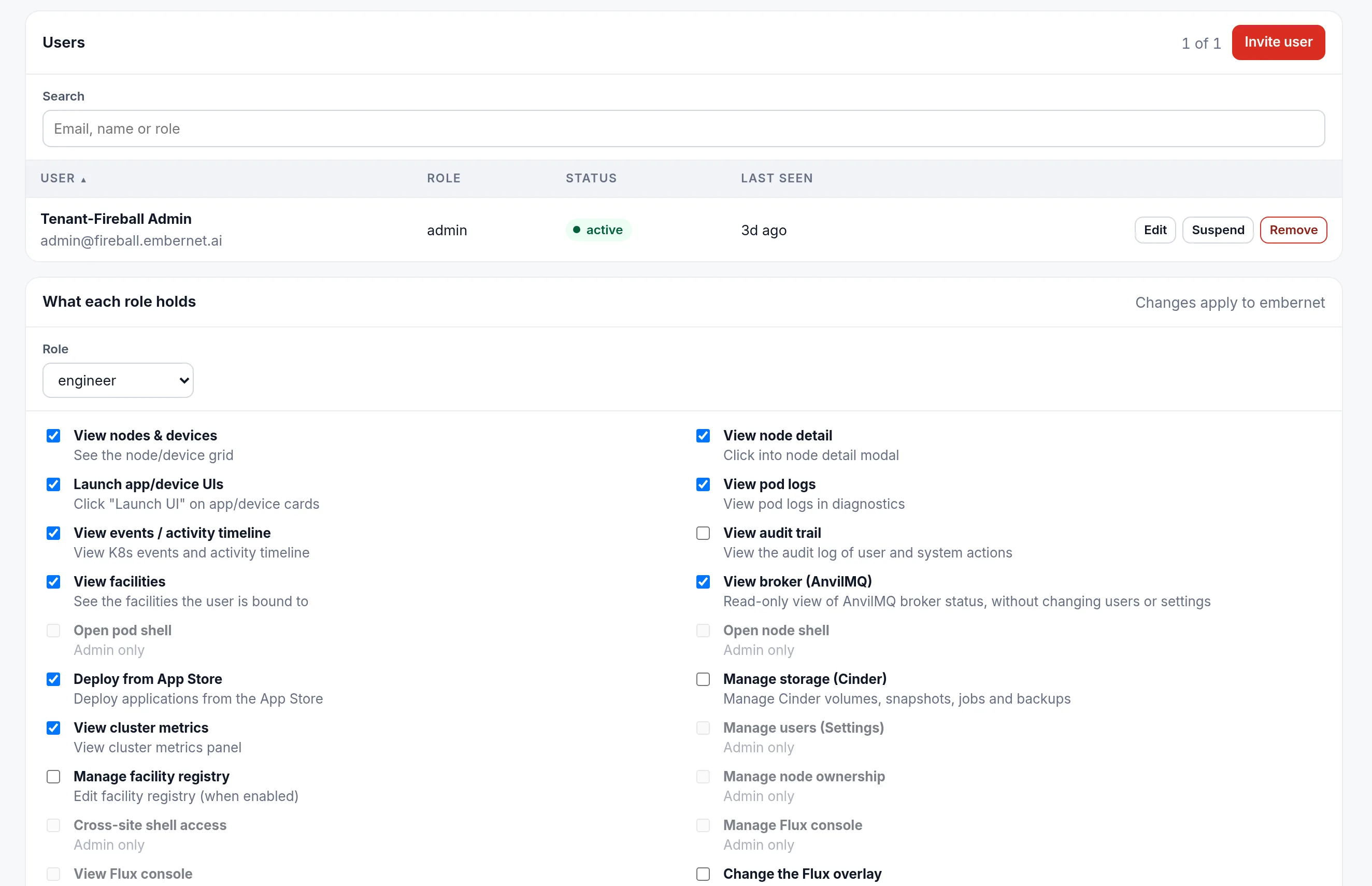
The Users tab lists everyone in your tenant with their role, status, and when they were last seen. Invite user sends an invitation. For each person you can Edit their role, Suspend them, or Remove them.
Below the list, What each role holds shows the permissions behind a role. Pick a role from the selector and each permission appears as a checkbox with a one-line description. Changes apply to your tenant only. A few permissions, such as opening a shell on a node or a pod, are marked Admin only and cannot be granted to a lower role. See Multi-Tenancy for how roles and tenants fit together.
Tenants
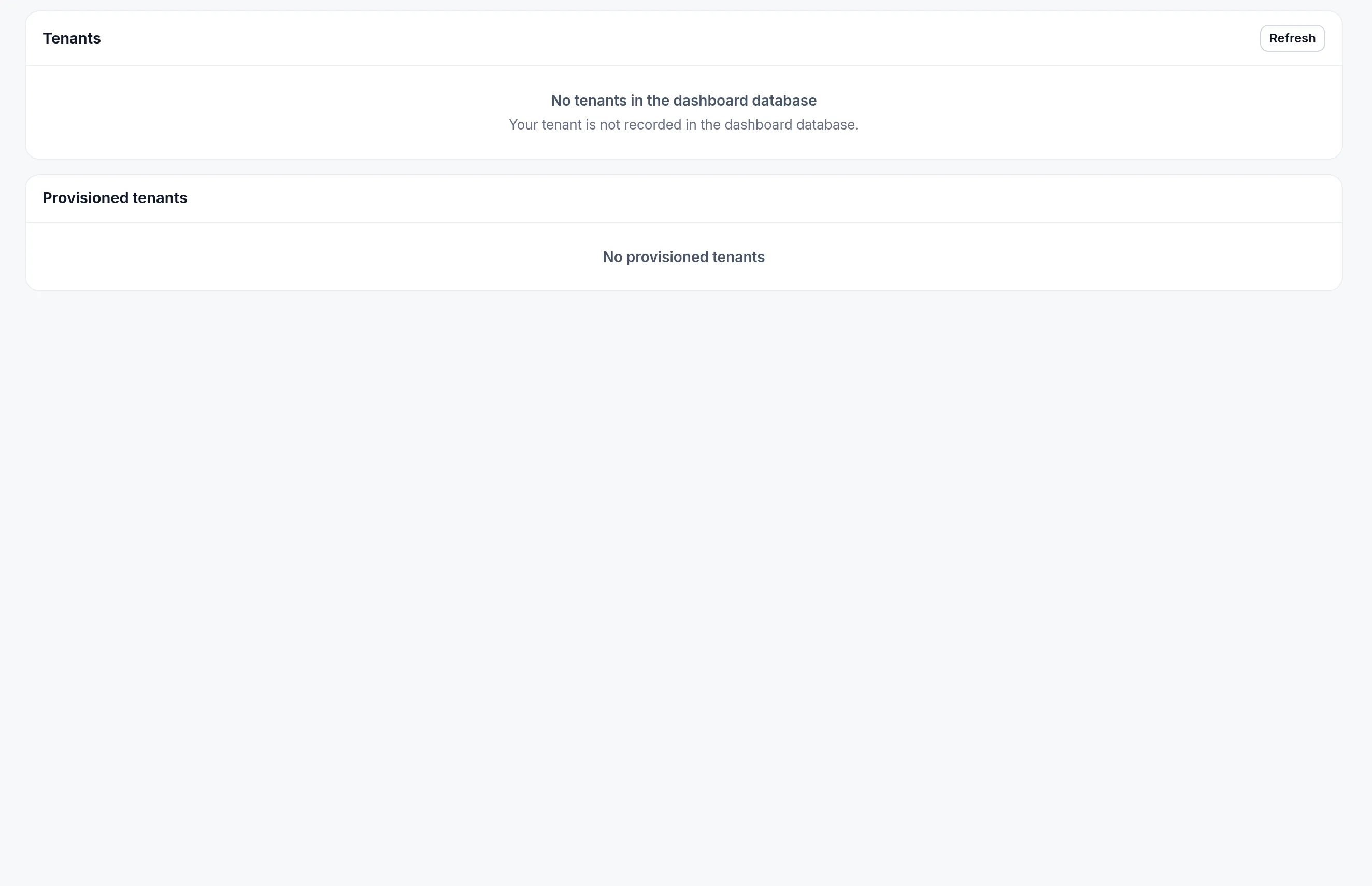
Tenants shows the tenant record for your organization and any tenants provisioned under it. An Admin sees their own tenant only, and platform staff see all of them. A tenant that is not recorded yet says so.
Billing
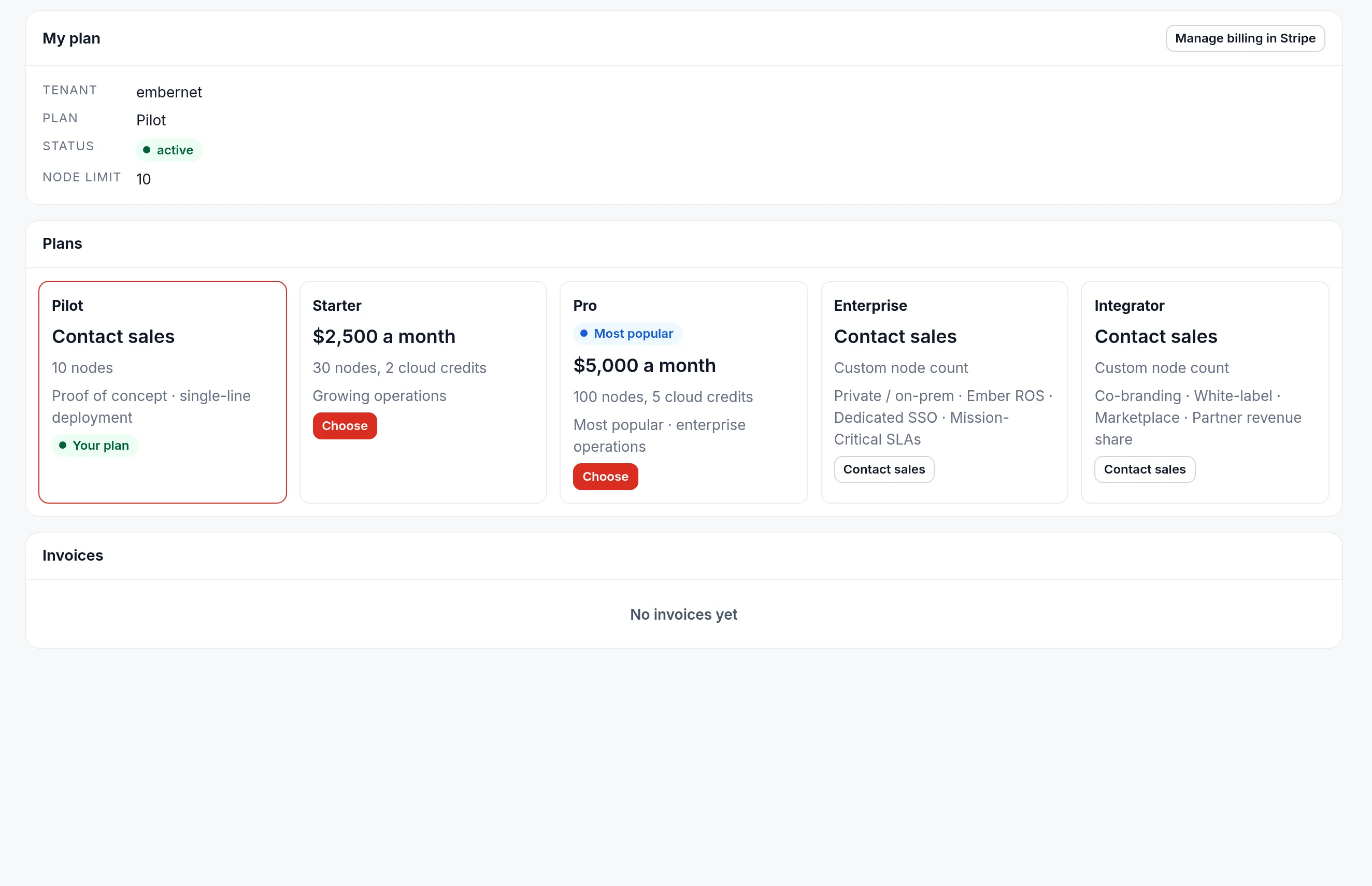
Billing shows your plan, its status, and your node limit, with the plans available to move to and your invoices underneath. Manage billing opens the billing portal, where payment details are kept. Plans marked Contact sales are arranged with the EmberNet team.
Ignition access
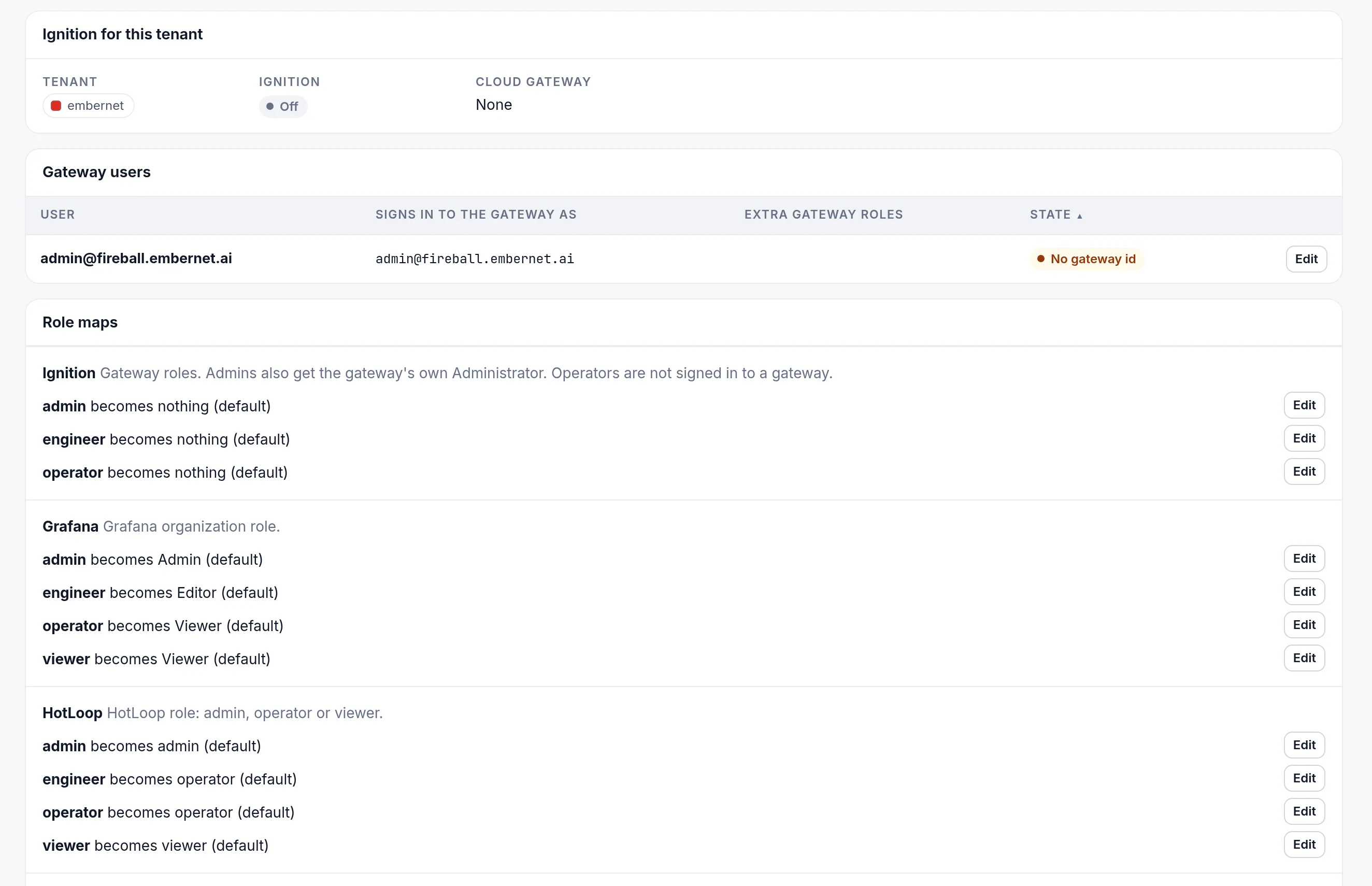
If your tenant runs Ignition, this tab controls who signs in to it. Ignition for this tenant shows whether Ignition is on and where your cloud gateway is. Gateway users lists the people with a gateway sign-in and the gateway roles they hold. Role maps decide how an EmberNet role turns into a role inside each app: Ignition, Grafana, HotLoop, Node-RED, and HotLoop Flow each have a map, and Edit changes it. The defaults are shown next to each role until you change them.
Audit

Audit is the record of who did what: events, actors, actions, and targets, with search and date filters and a Download CSV button. The counters at the top show Events, Today, This week, and People. Use it to answer "who changed this" after the fact. It is available to Admins. The screenshot stops above the log rows, because each row names the person who acted.