Administer Hearth
Administration lives under Settings. Each group on that page shows only for an account that holds the matching right, so a person who is not an admin sees only the personal settings.
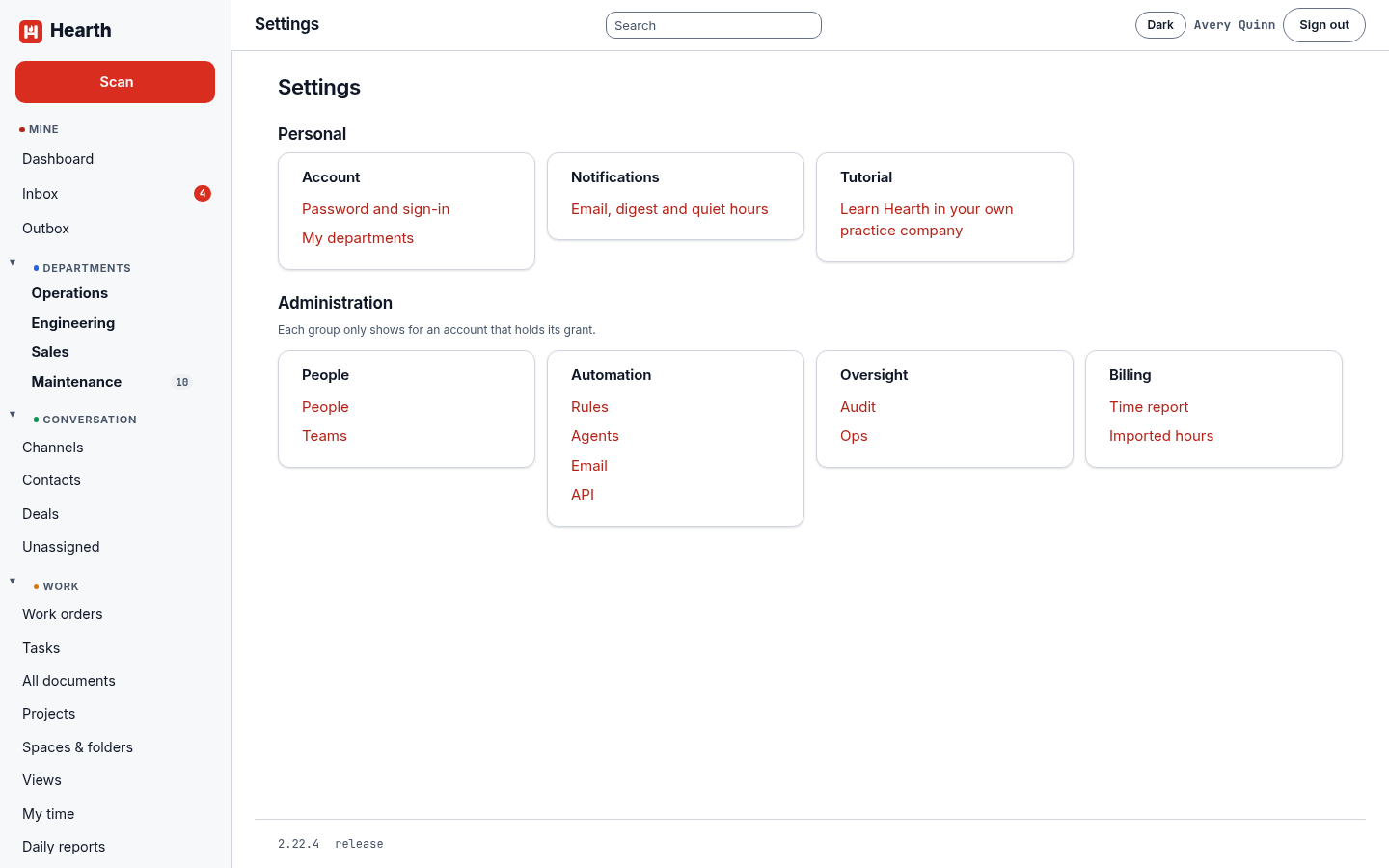
| Group | What is in it | Needs |
|---|---|---|
| People | People, Teams | People and teams |
| Automation | Rules, Agents, Email, API | Agents and API |
| Oversight | Audit, Ops | Audit log |
| Billing | Time report, Imported hours | Financial |
A super admin can do all of it and can hand the rest out. The owner who claimed Hearth is a super admin.
People
Open Settings, then People.
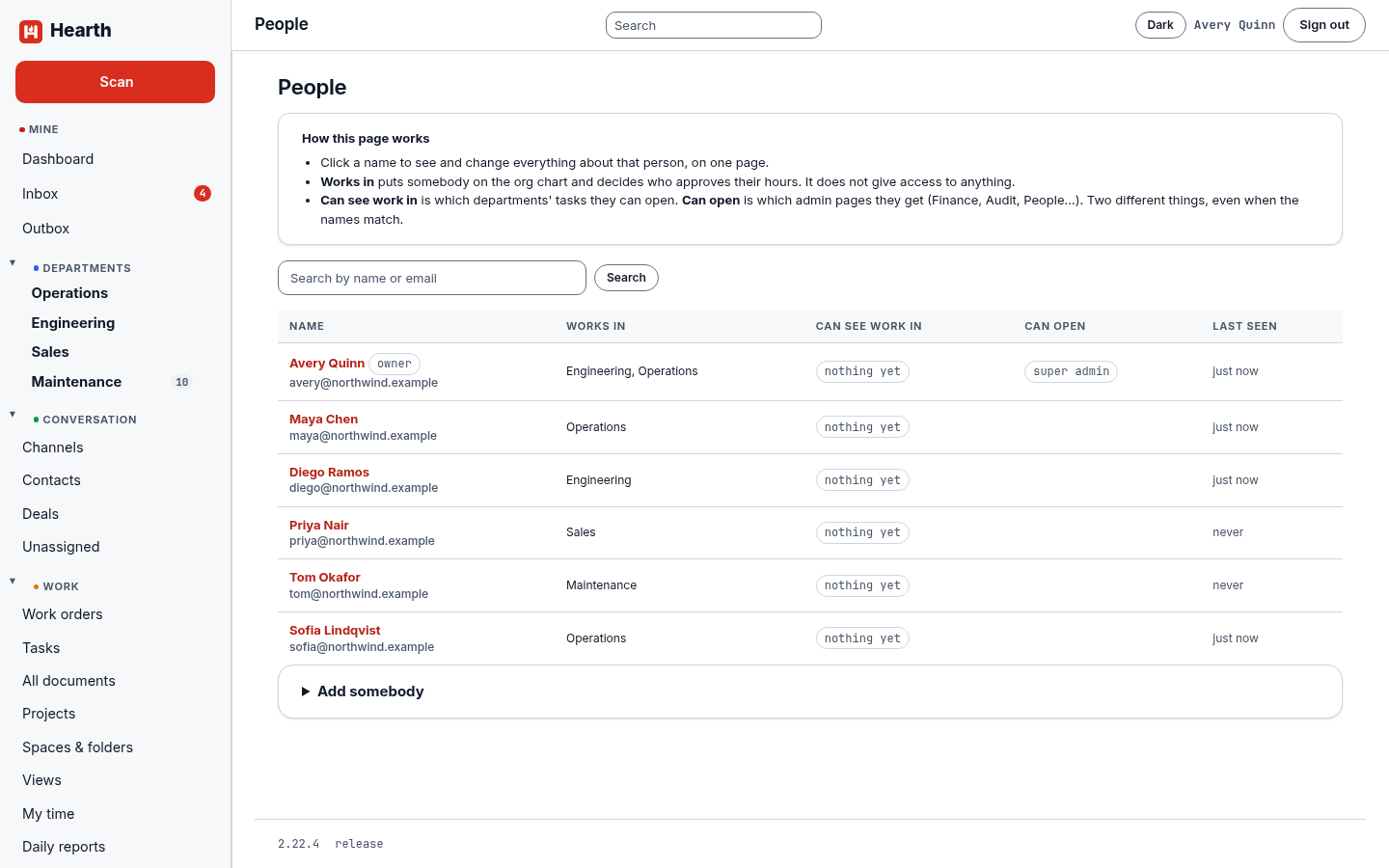
The page explains itself. Works in puts a person on the org chart and decides who approves their hours. It does not give access to anything. Can see work in is which departments' tasks they can open. Can open is which admin pages they get. These are separate on purpose, even when the names match.
- Add somebody takes a name, an email, and an optional starting password. With a password, the person must choose their own the first time they sign in. Without one, Hearth makes a one-time link, valid for 24 hours, for you to send them, which is better than sending a password. People who sign in with single sign-on appear here on their own the first time they arrive.
- Choose a name to change everything about that person on one page: the departments they work in, who approves their hours, the departments they manage, which departments' work they can see, and the admin rights they hold.
- Time approval is for salaried staff. Turn it on and time they log from that moment is approved as it is logged, and the entry says the system approved it. Time already logged keeps the state it has.
- Suspend stops an account from signing in until you reinstate it. Nothing the person did is deleted, and their tokens stop working with them.
- Reset password makes a new link the person opens to choose a new password. It works once and expires in 24 hours.
Admin rights
A super admin can grant any of these to anyone. Each one opens a group of pages and nothing more.
| Right | What it gives |
|---|---|
| Super admin | Everything, including granting the rest. |
| Financial | Hourly rates and anything costed from them. |
| Everyone's time | Everybody's hours, load, and capacity, not only their own. |
| Audit log | Who did what, and from where. |
| People and teams | Adding colleagues, managing teams, and directory provisioning. |
| Agents and API | Agents, API tokens, webhooks, and the assistant connector. |
Teams
A team is a group you can share work with, so sharing a machine with a team is the same act as sharing it with a person. Open Settings, then Teams, name the team, and add people. Membership is checked on every request, so taking someone out of a team takes effect on their next click, not their next sign-in.
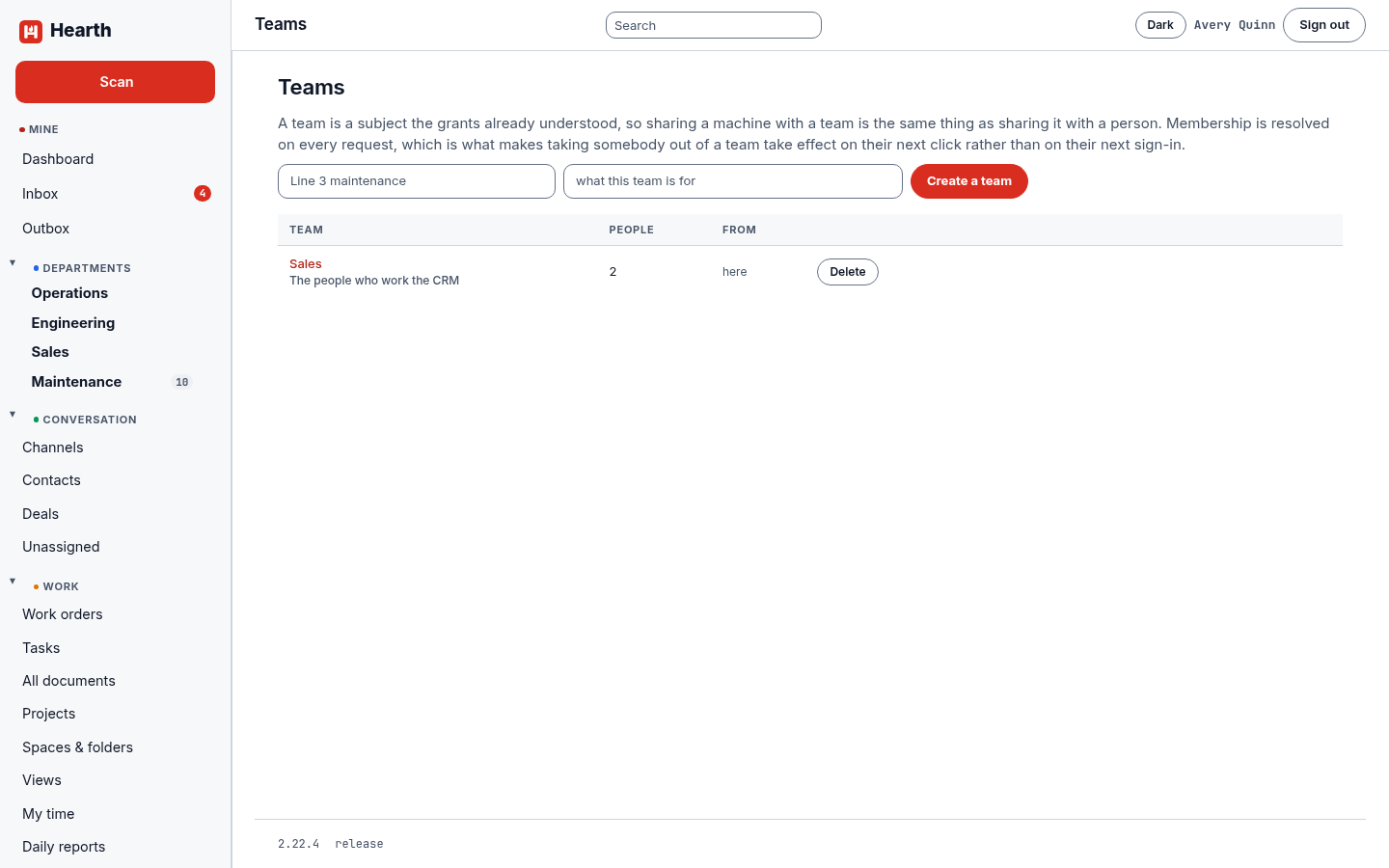
The team called Sales is special: its members work the CRM.
Audit log
Open Settings, then Audit. Every permission change, every deletion, and every export is recorded with who did it and the address it came from. Filter by action, by date, or by the record it was about. The log refuses edits, so what is on the page is what happened.
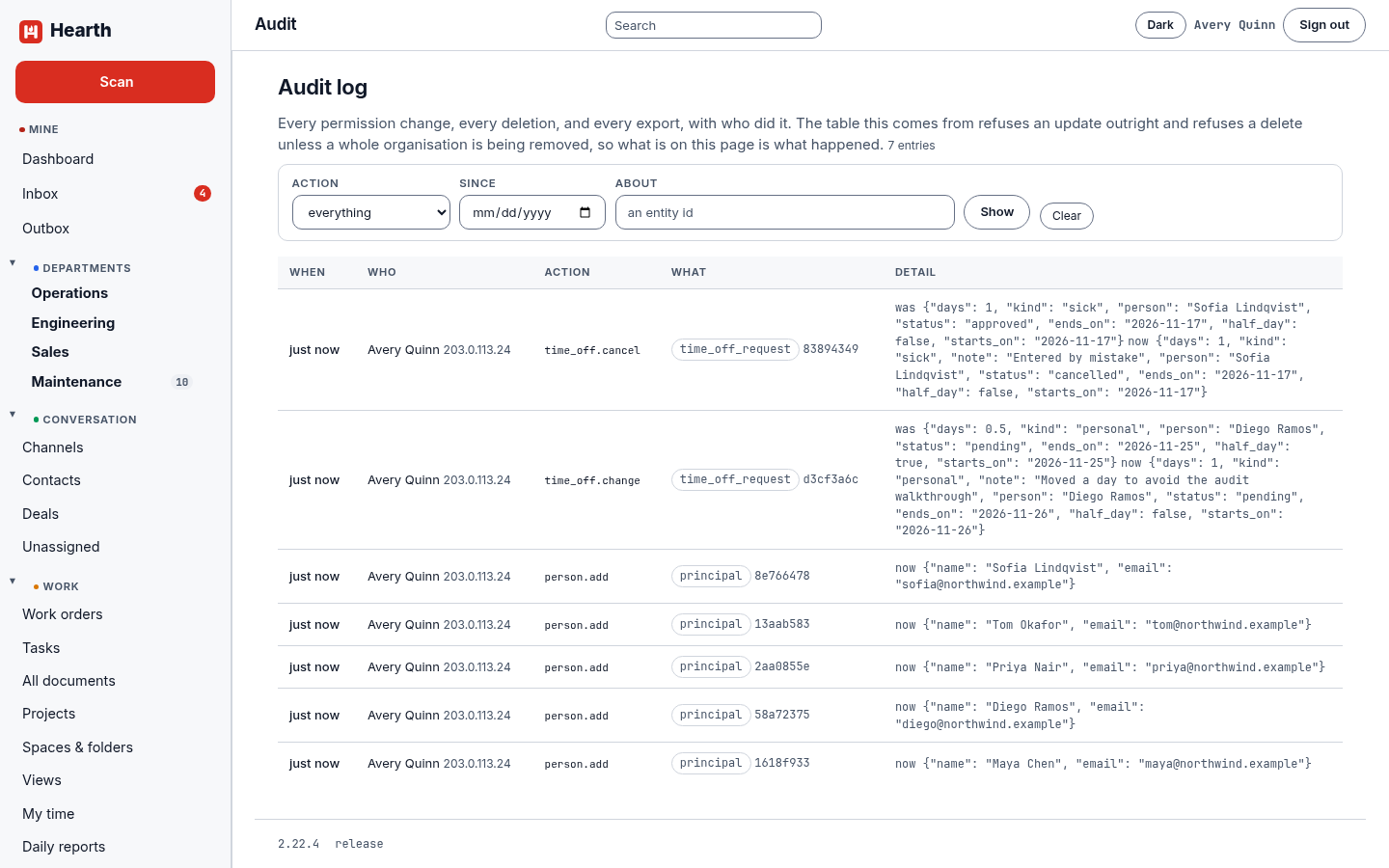
Changes to someone's time off, additions of people, and deletions all leave rows here. A leave reason is never copied into the log.
Email
Open Settings, then Email. Enter your mail relay's host, port, from address, and credentials, choose whether to use STARTTLS, save, and send a test. Until you do, the inbox works and no email goes out. The same page can give a space an inbound address, so a message sent to it becomes a work order, a task, or a note in that space.
API tokens and webhooks
Open Settings, then API.
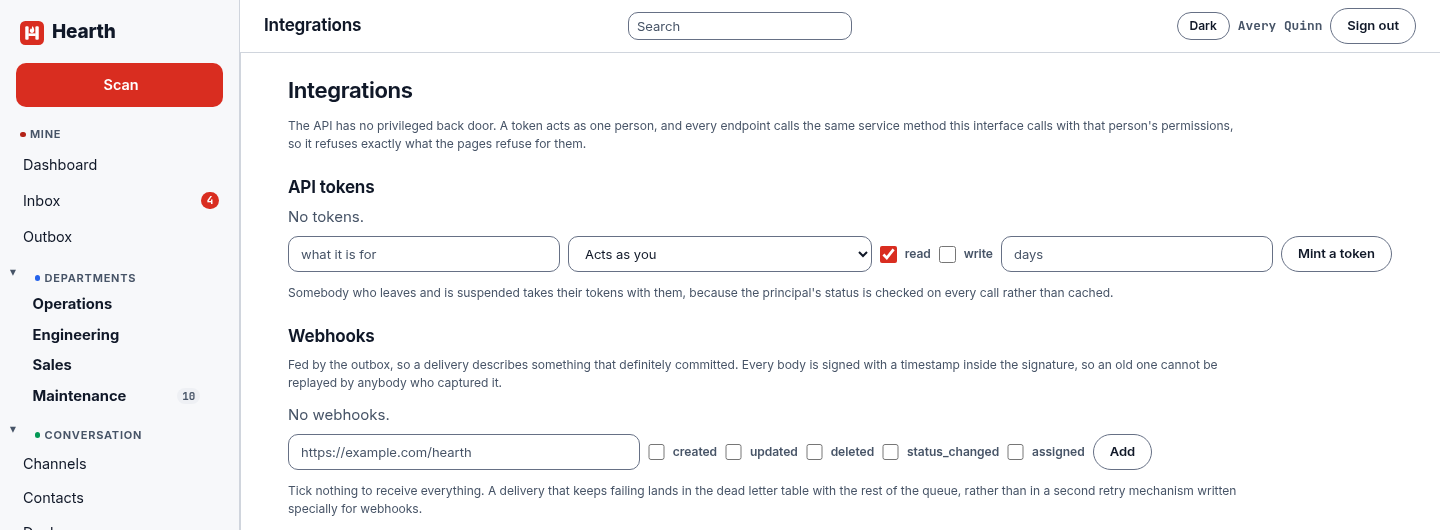
- API tokens. Name a token, choose whether it acts as you or as another person, pick read or write, and optionally set an expiry in days. The token is shown once, so copy it then. A token acts as one person and is refused whatever that person is refused.
- Webhooks. Add an address and choose the events to send: created, updated, deleted, status changed, assigned. Tick nothing to receive everything. Each delivery is signed, with a timestamp inside the signature so an old one cannot be replayed, and the page lists recent deliveries and how they went.
- Provisioning from your directory. Point a directory that speaks SCIM at Hearth with a provisioning token. Groups become teams, people become accounts, and taking someone out of a group takes their access away on their next request.
- Leaving another tool. Import from Jira, Asana, Monday, Trello, or plain CSV, and export everything as CSV or JSON. Every row that carries an id is matched on it, so running the same import twice updates and does not duplicate.
Rules and agents
Rules do the routine part. A rule says when something happens (a status changes, somebody is assigned, something is created or edited, a comment is added), on what (work orders, assets, tasks, or anything), an optional condition, and then what to do: set a field, assign someone, add a comment, create a linked item, notify someone, or call a webhook. Rules arrive switched off so you can try one first, and two rules that trigger each other stop after one cycle.
Agents are accounts for software. An agent has its own grants, appears in the history, and can be mentioned. It sees only what it has been granted. See the assistant connector.
Background work
Settings, then Ops, shows Hearth's background queue by kind, what events turned into, and the state of the search index, which is where to look when something that should have happened has not.
Backups
Run hearthctl backup on a schedule, run hearthctl verify on what it wrote, and rehearse a restore on a spare database before you need it. The Helm chart runs a backup nightly. See Install Hearth.