Calendar
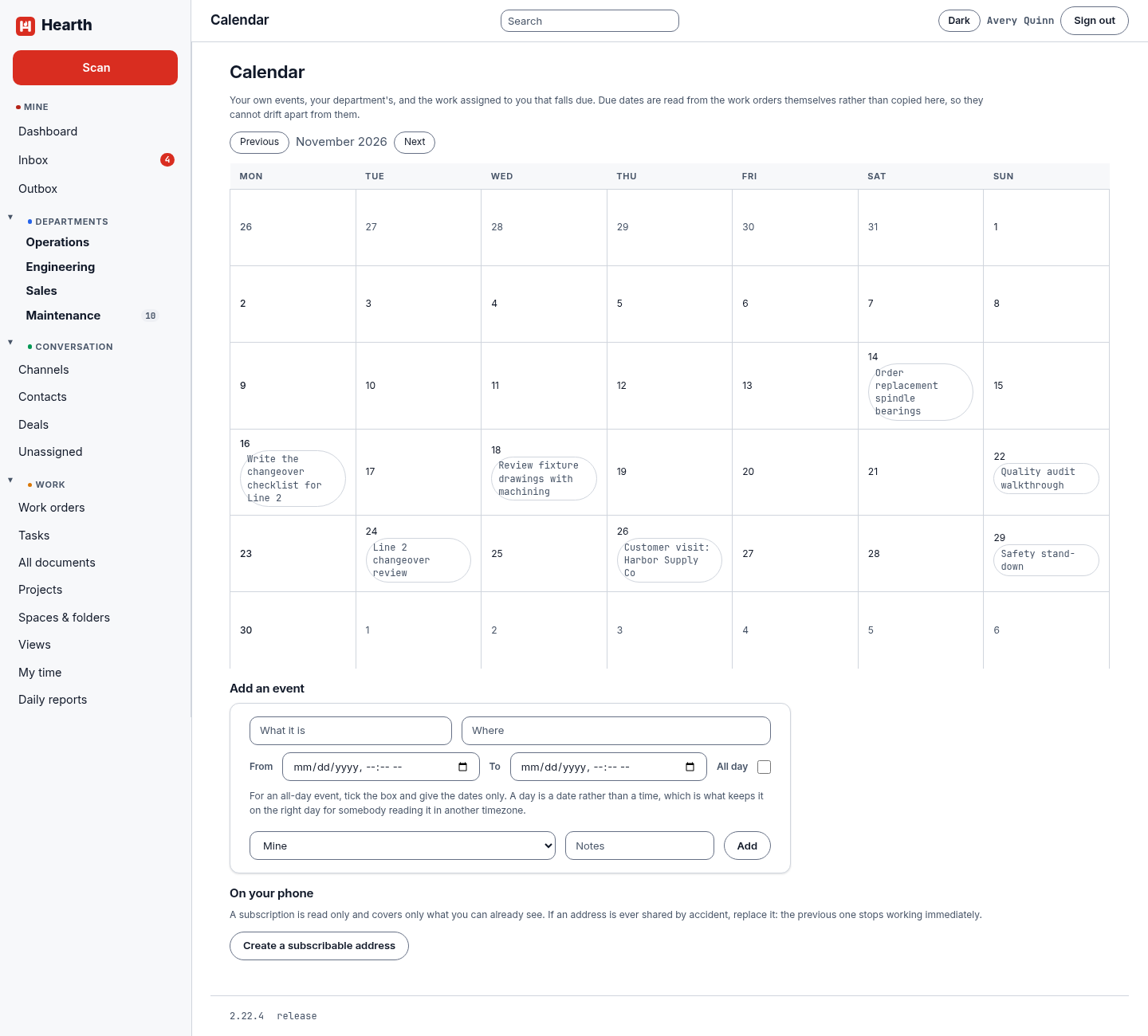
Open Calendar in the left rail for a month view of what is happening around you.
What it shows
- Your own events and your department's events.
- Work assigned to you that falls due. Due dates are read from the tasks and work orders themselves, so the calendar and the work can never disagree. Choose an entry to open it.
- Who is out. When a time off request is approved, your team sees "Out" on the calendar for those days, never the reason. See Time.
- Your Google events, if you connected your Google account under Settings, then Password and sign-in.
Use Previous and Next to move between months.
Add an event
Use Add an event under the month.
- Enter what it is and, if you want, where.
- Choose From and To. For an all-day event, tick All day and give the dates only. A day is a date rather than a time, which keeps it on the right day for someone reading it in another time zone.
- Choose whose it is. Mine keeps it yours. Pick a department to put it on that department's calendar.
- Add notes if you need them, and choose Add.
Put it on your phone
On your phone creates a subscribable address for your calendar. Add that address as a subscription in your phone's calendar app or in any calendar that reads .ics feeds.
- The address is shown once, when you create it. Copy it then.
- A subscription is read only and covers only what you can already see in Hearth.
- Treat the address like a password. Anyone who has it can read your calendar.
- If the address is ever shared by accident, choose Replace the address. The old one stops working at once. Turn it off removes the feed.
Work by date
For tasks and work orders on a calendar of their own, switch the Tasks or Work orders list to its Calendar view. See Tasks.