Time
Logging hours
Open My time. Enter how long you worked, when, and what you were doing, then choose Record. Or choose Start a timer and stop it when you finish.
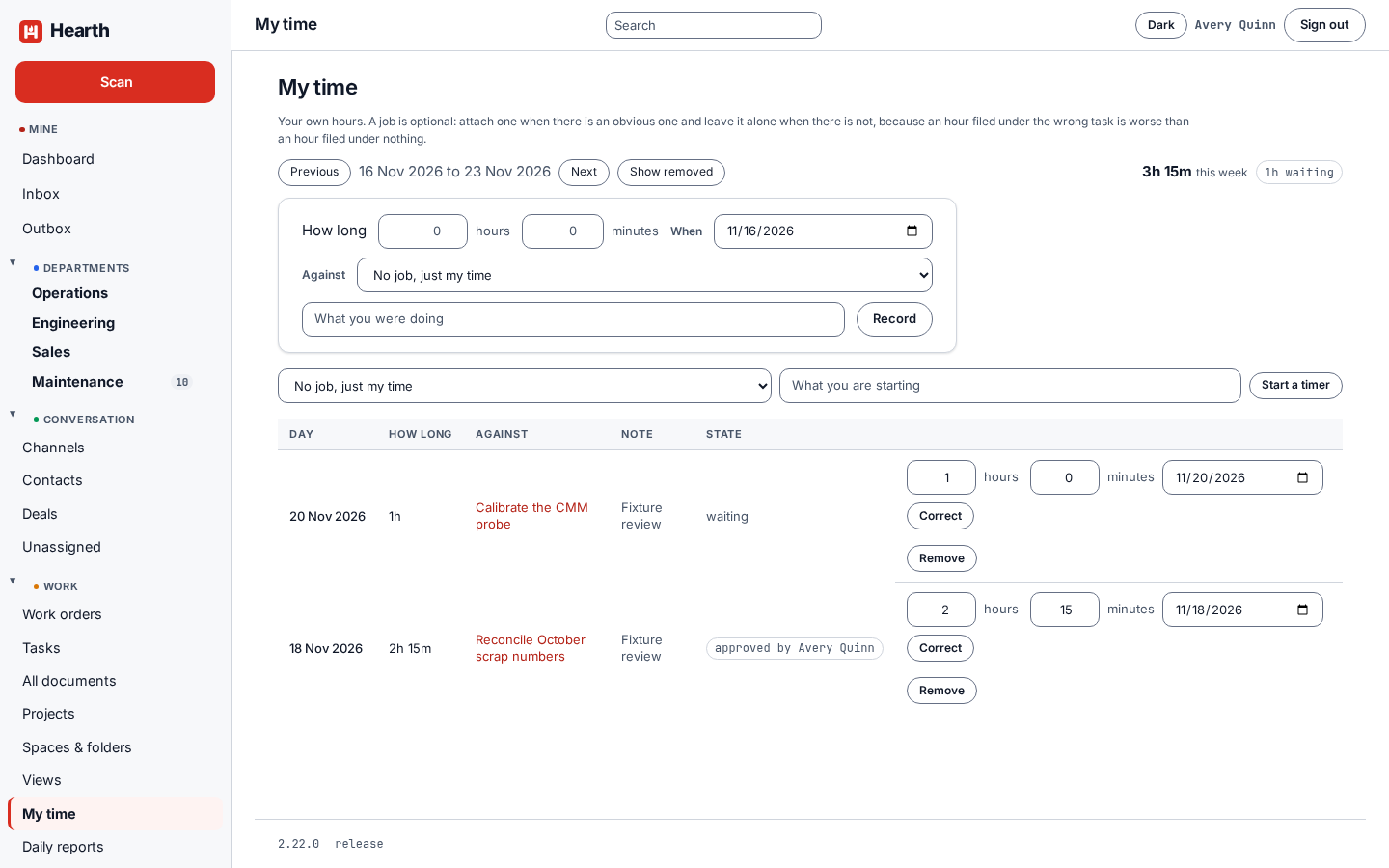
Tying an entry to a task is optional. Attach one when there is an obvious one, and leave it alone when there is not, because an hour filed under the wrong task is worse than an hour filed under nothing.
Each entry shows its state: waiting for approval, approved, or sent back. You can Correct or Remove your own entries.
Approvals
Your departments decide who approves your hours. Approvers see what is waiting for them under Approvals. Your dashboard shows what you logged this week and this month, what is waiting, and what was sent back.
Time off
Open Time off, pick the dates and the type of leave, and send the request to your approver. Hearth asks you to confirm that the request is subject to approval before it goes. The types are vacation, sick, personal, medical, family, bereavement, jury duty, and other. Tick The first day is a half day when you need only part of it, and a half day counts as 0.5.
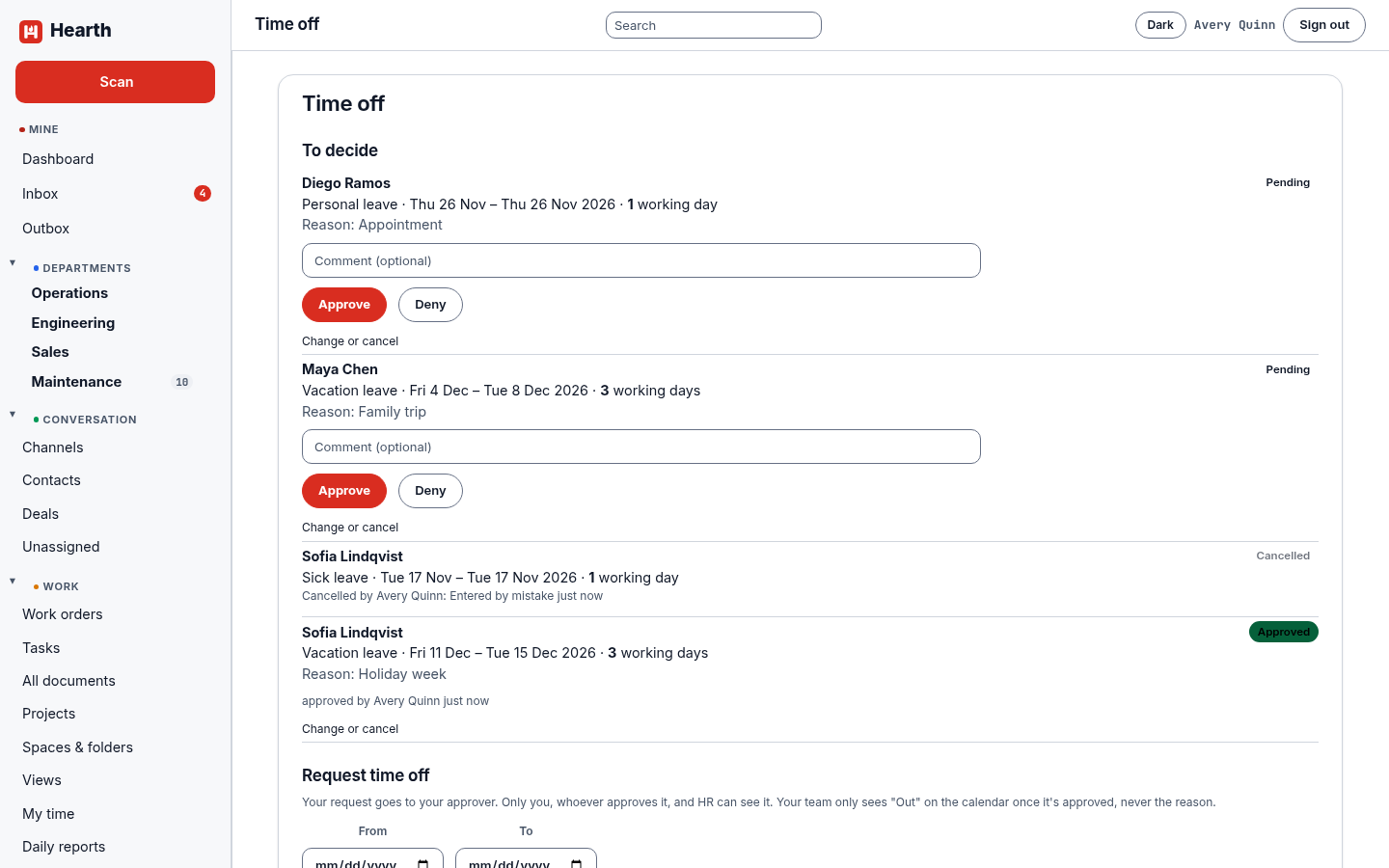
Only you, your approver, and HR can see a request. Your team sees "Out" on the calendar once it is approved, never the reason. You keep your own Cancel for a request that is still pending, and for an approved one that has not started.
Deciding, changing, and cancelling
Your approver sees what is waiting under To decide, with Approve and Deny and an optional comment. The same list holds approved requests that are still to come or under way, so a request that turned out wrong or moved can be fixed.
Approvers and admins can change or cancel anybody's request, pending or already approved, from Change or cancel under the request. That means the person's named approver, a manager of their department, a super admin, and anyone who holds People. It is never the person themselves through this route.
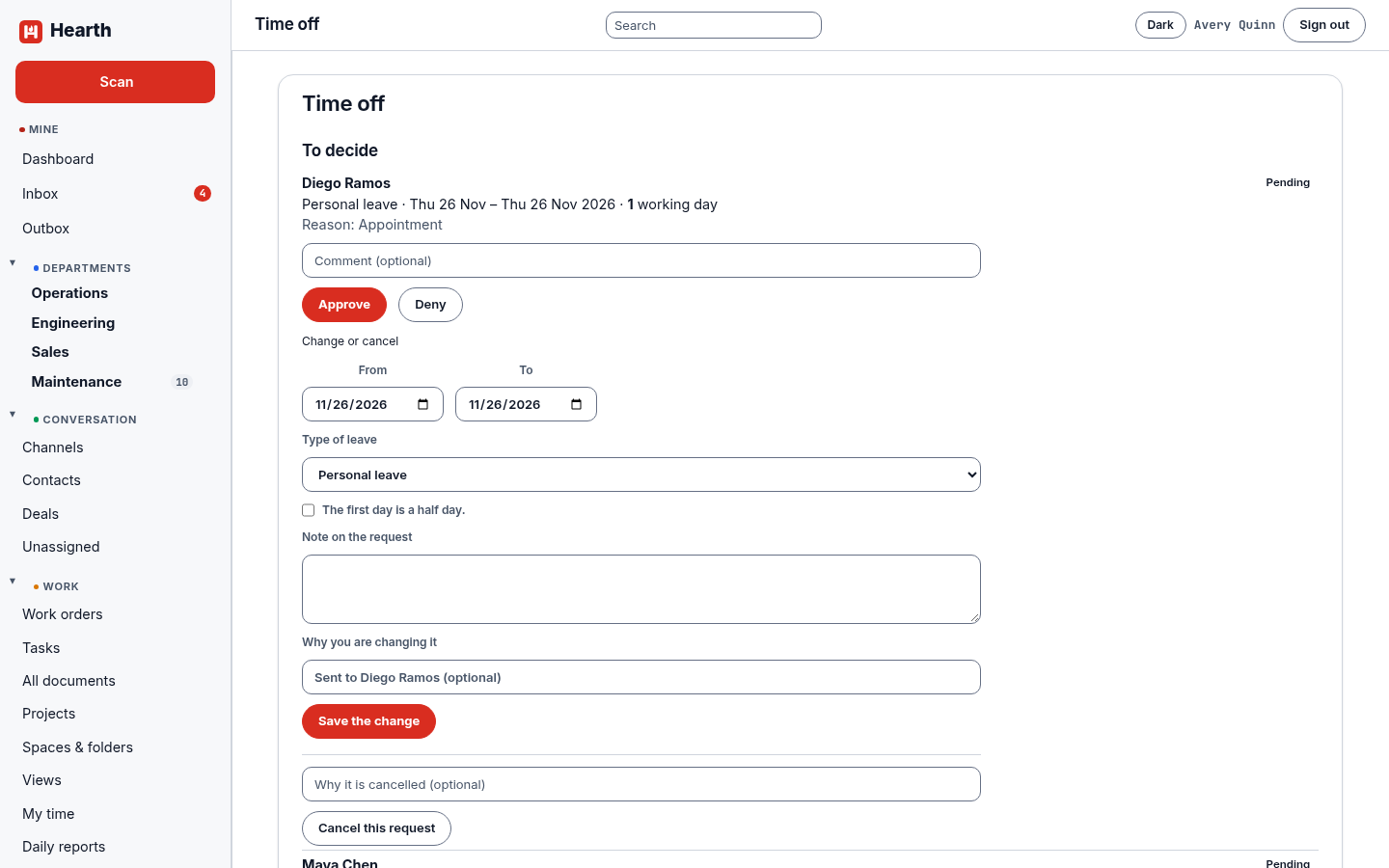
- Change the dates, the type of leave, the half day, and the note on the request, and add why you changed it. A change that changes nothing is refused. The result has to be a real request, with the dates in order, a working day in them, and a known type.
- A changed pending request is updated where it is. A changed approved request is decided again by whoever changed it, and its "Out" on the calendar moves with it.
- Cancel this request takes an approved request's "Out" off the calendar. The request stays on the person's list as cancelled, with who cancelled it and why.
- The person is told about every change or cancel, and each one leaves a row in the audit log. The reason and comments text is never copied into the log, because a leave reason is often medical.
A denied or cancelled request is finished and nobody changes it.
Daily reports
Everyone can file one report a day from Daily reports or from the card on the dashboard: the day's text, photos, files, and a comment, in one step. A person has at most one report per day. Readers see the reports they are allowed to see, and a roll-up can be downloaded as a PDF.
Reports
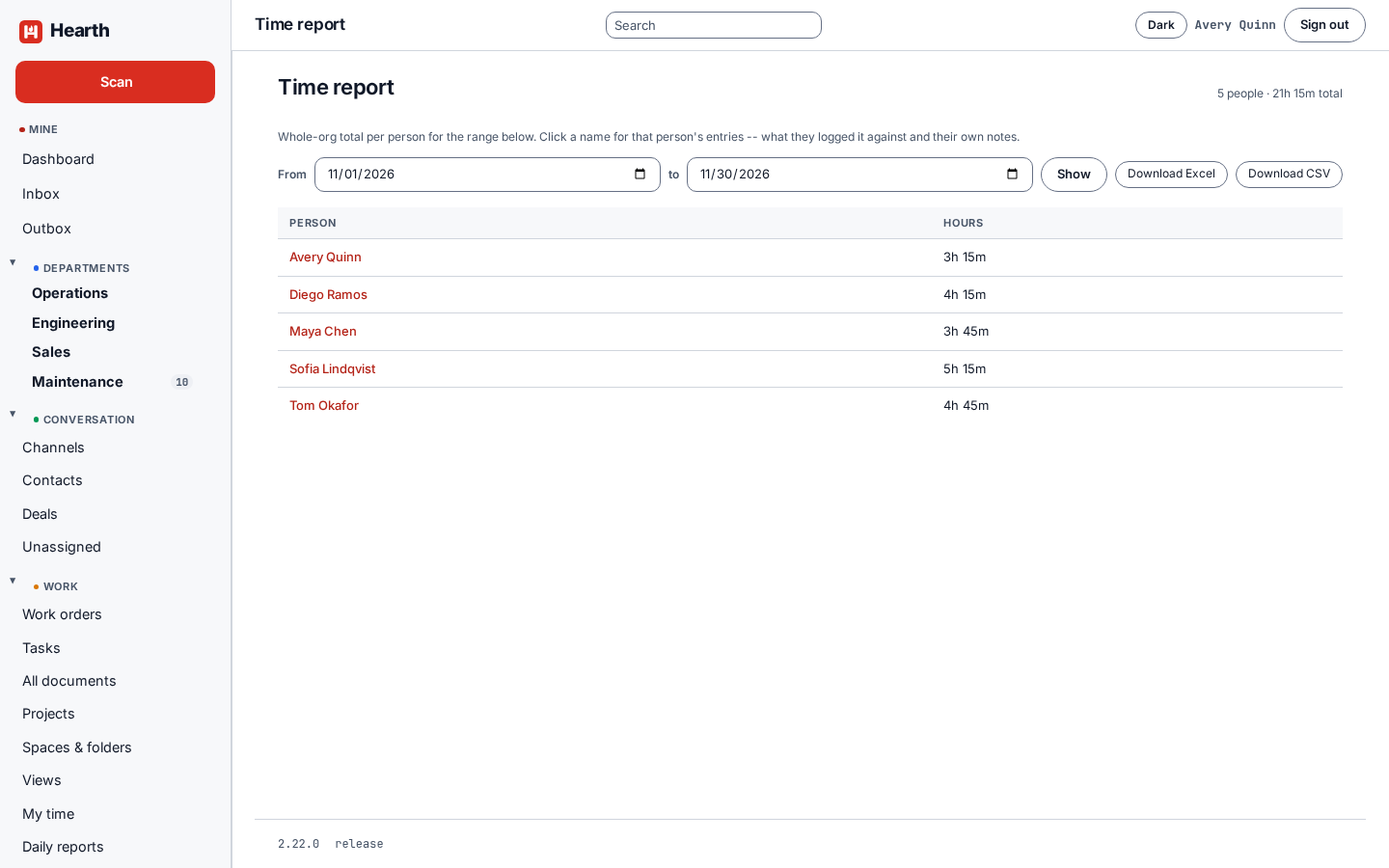
Time report shows every person's hours for a range. Click a name to see what they logged it against and their own notes. Download CSV and Download Excel save the report. Workload compares each person's estimated open work for the week against their capacity.