Tasks
Open Tasks in the left rail to see every task you can access.
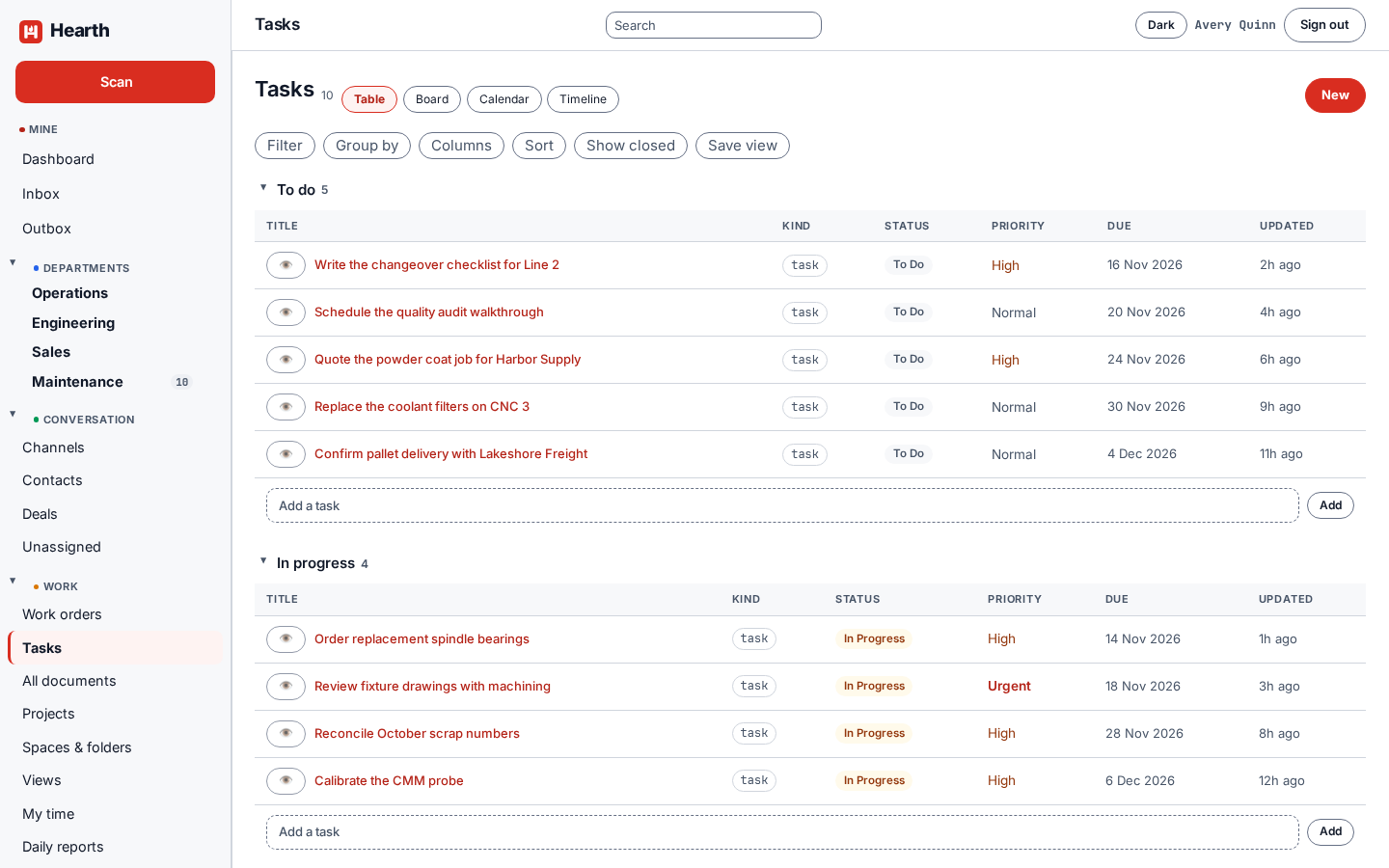
Views
The row of buttons at the top switches between Table, Board, Calendar, and Timeline. All four show the same tasks. Use Filter, Group by, Columns, and Sort to shape a list, and Show closed to include finished work.
When you have a list the way you want it, choose Save view and give it a name. A saved view stores the question and never the answers, so two people who open the same view each see the tasks they are allowed to see. Find saved views under Views.
Creating a task
Choose New, or use the Add a task row under a group. Click a task to open it.
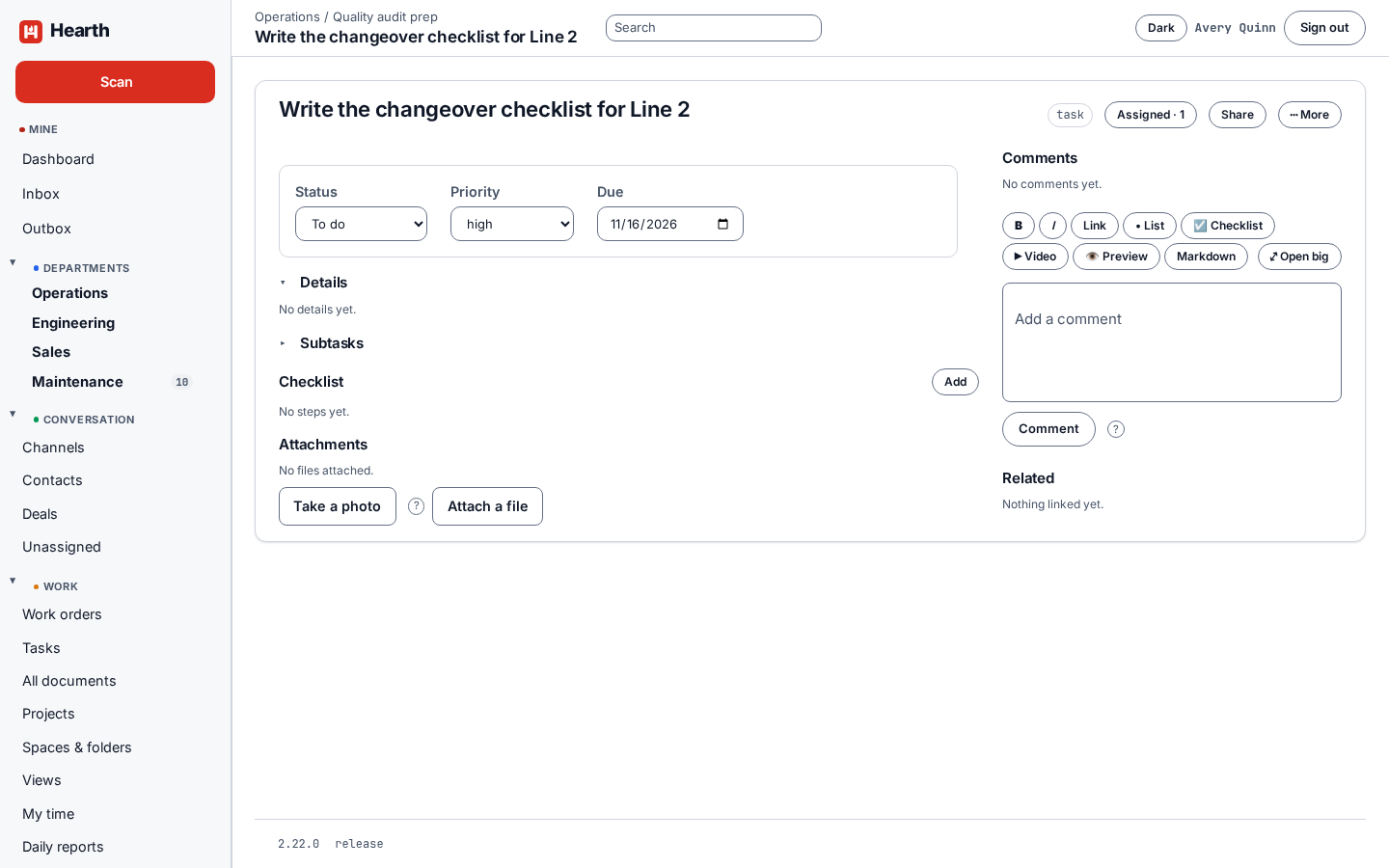
A task holds:
- Status: To do, In progress, Blocked, Done, or Cancelled.
- Priority and a due date.
- Details: a written description with an editor for links, lists, checklists, and video.
- Subtasks. Closing a task closes its open subtasks as well.
- A checklist of steps you can tick off.
- Attachments: files, or a photo taken with your phone camera.
- Comments from the people working on it.
- Related records: link a task to an asset, a company, or a deal.
- Assigned: one or more people.
Use Share to control who else can open a single task.
Where tasks show up
Tasks assigned to you appear on your dashboard and on the calendar when they fall due. The Workload page compares each person's estimated open work for the week against their capacity.