Notifications
Hearth tells you when something needs you: work assigned to you, a mention, a comment, a change, something coming due, or a request waiting for your approval. Everything lands in your Inbox first.
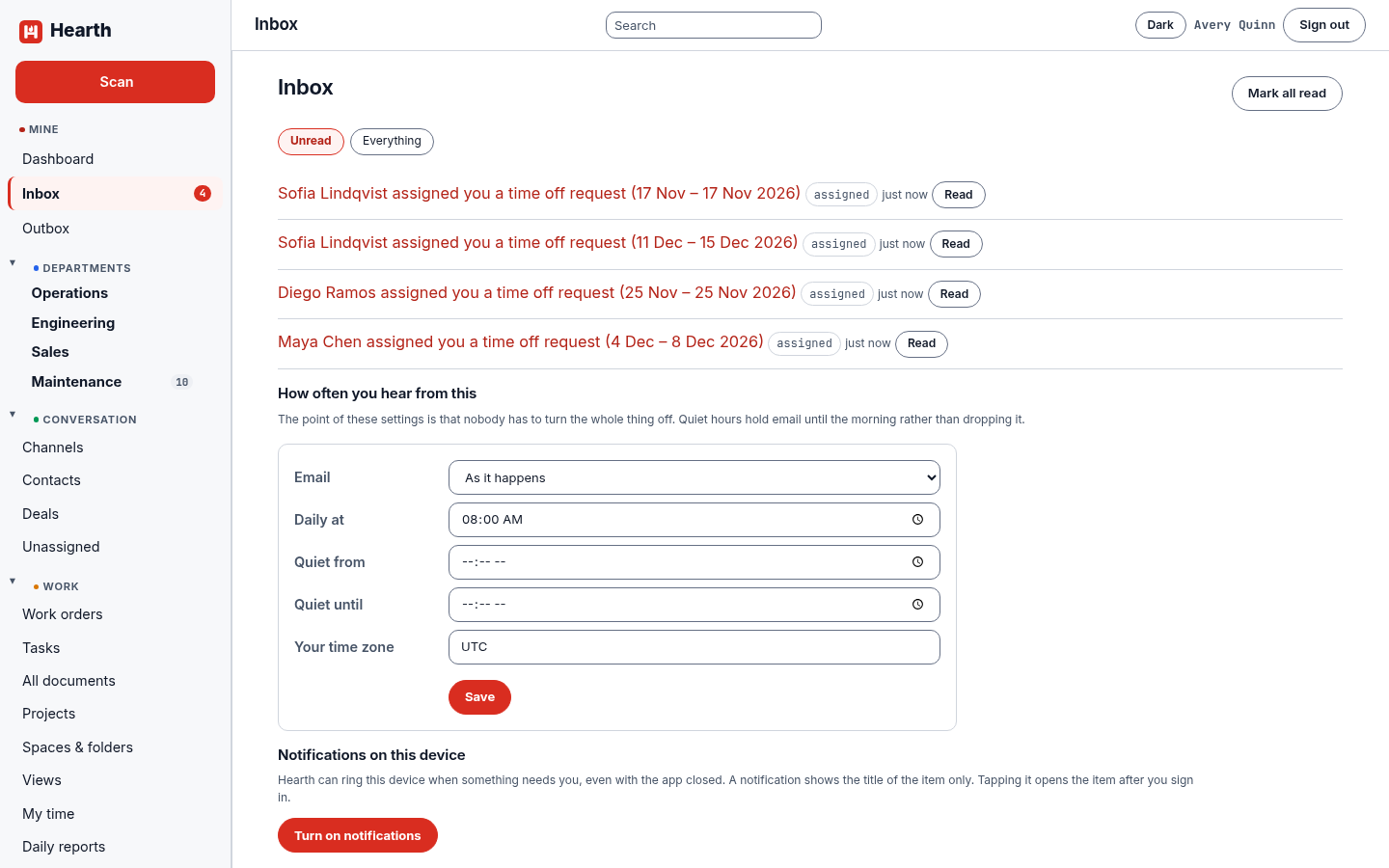
The inbox
Open Inbox in the left rail. Unread shows what you have not dealt with and Everything shows the rest. Choose an item to open the work it is about, Read to clear one, and Mark all read to clear the list. The number beside Inbox in the rail is how many are unread.
How often you hear from it
Under the list, How often you hear from this sets email for you.
| Setting | What it does |
|---|---|
| As it happens, Once a day as a digest, or Never. | |
| Daily at | The time the digest is sent. |
| Quiet from and Quiet until | Hold email until the morning instead of dropping it. |
| Your time zone | The zone those times are read in. |
Email is sent only when your administrator has set up outgoing mail. Without it, the inbox carries on and nothing else changes.
Push notifications
Hearth is an installable app, and an installed Hearth can ring your phone or computer when something needs you, even with the app closed. It uses Web Push, which every current browser supports.
- Install Hearth.
- iPhone and iPad (iOS 16.4 or newer): open Hearth in Safari, tap Share, then Add to Home Screen, and open Hearth from the new icon. iOS only offers notifications to an app opened from the Home Screen.
- Android: open Hearth in Chrome and choose Install app or Add to Home screen.
- Computer: use the install icon in the address bar of Chrome or Edge.
- In Hearth, open Inbox, find Notifications on this device, and choose Turn on notifications. Allow the prompt.
- Choose Send a test notification. It should arrive within a few seconds.
- Under What rings, untick anything you do not want: Assigned to me, Mentions, Comments, Changes, Due soon, and Approvals. Each one is a notification Hearth already puts in your inbox, and push adds nothing new.
Each device is turned on separately, and Your other devices lists the others so you can test or remove them. Quiet hours hold pushes as they hold email, and the item is still in your inbox when the quiet ends.
A notification shows one line, the same sentence as the inbox, and nothing from inside the item. Tapping it opens the item, after you sign in if your session has ended.
For whoever runs Hearth
Push needs nothing extra to run, because the sender is part of Hearth. Three things to know:
- Hearth makes its push identity once and keeps it. On the Helm chart it is a Secret named for the release that survives an uninstall, and on the Podman install it is kept in the database. Do not delete it while people have notifications on, or each person has to turn them on again.
- Set
push.subjectin the chart (orHEARTH_PUSH_SUBJECT) to amailto:orhttps:contact. The push services see it. It defaults to your public address. - Hearth must be able to make outbound HTTPS connections on port 443 to the push services of the browsers your people use. Behind an egress proxy, allow those names. Your page also has to be served over HTTPS, as browsers require for push.